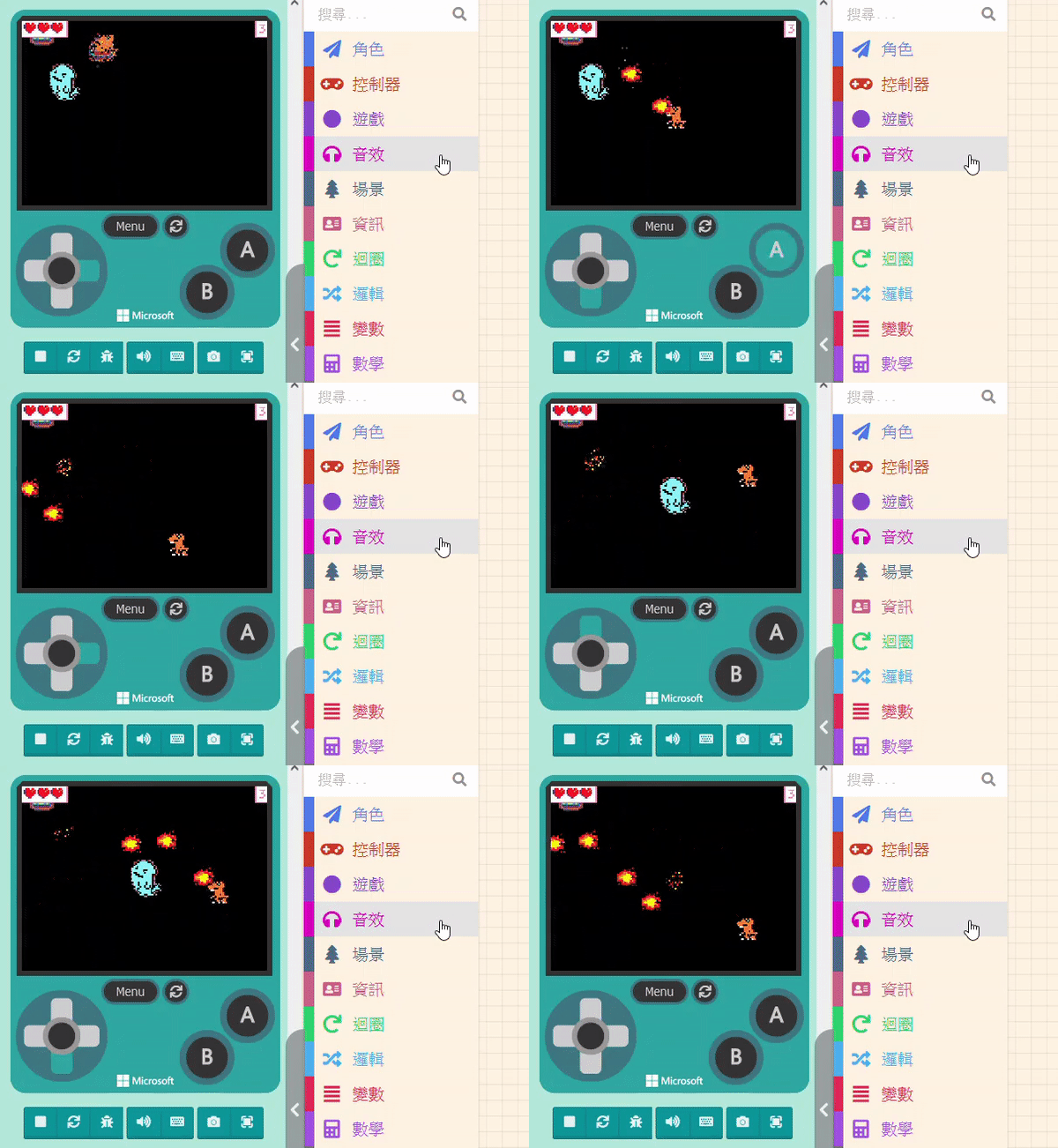
Making a sprite fire missiles is not complicated. The relevant blocks are located in the “Sprites” category. Look closely, and you will see two blocks related to “Projectiles“.
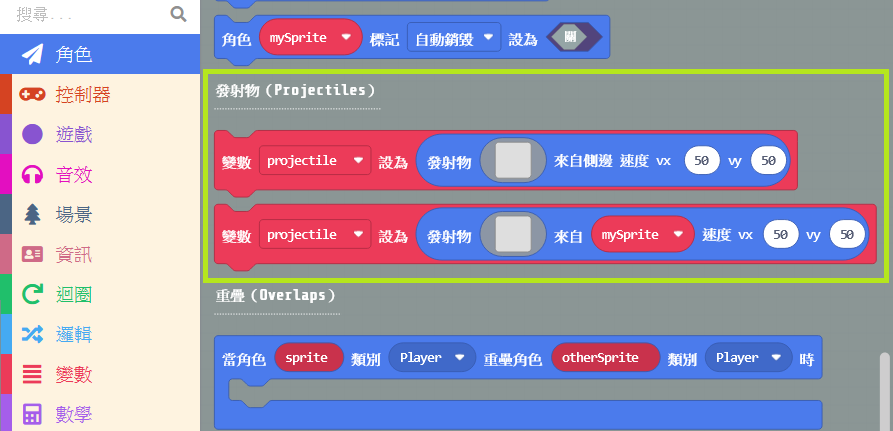
- projectile from side: The first block is used to set projectiles generated from the “background” (side). Using the “Space Destroyer” example, the “Meteors” in that game are generated using this block.
- projectile from sprite: The second block, as the name suggests, creates projectiles from a “Sprite.” In “Space Destroyer,” the laser beams fired by the fighter jet are created using this block.
To add the attack function to our character, we need the second block. Drag it out first.
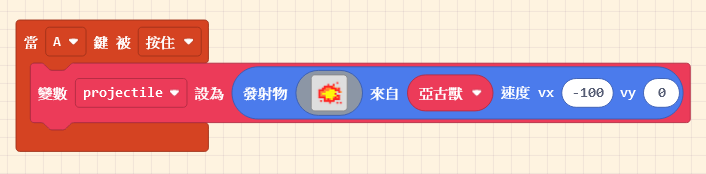
We want the attack timing to be controlled by the player, so click on the “Controller” category and drag out the “on [A] button [pressed]” block.
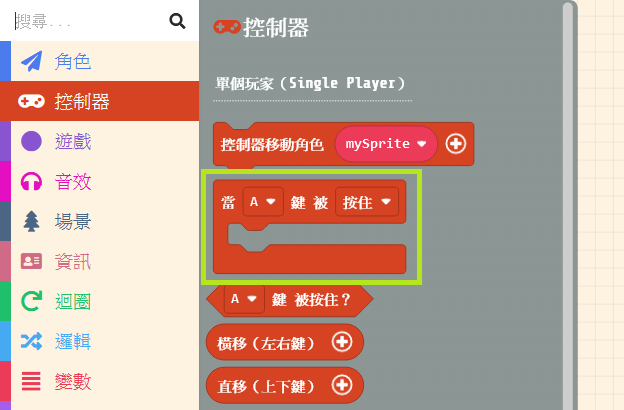
Combine these two blocks. You can draw the “Pattern” for the projectile (e.g., a small flame) or select one from the Gallery. Next, select the variable name of the player-controlled sprite. The “vx” and “vy” at the end represent the “Velocity” in the X and Y directions, respectively. The adjustable range is -100 to 100.
- vy: Velocity Y (Vertical speed). Positive is Down, Negative is Up.
- vx: Velocity X (Horizontal speed). Positive is Right, Negative is Left.
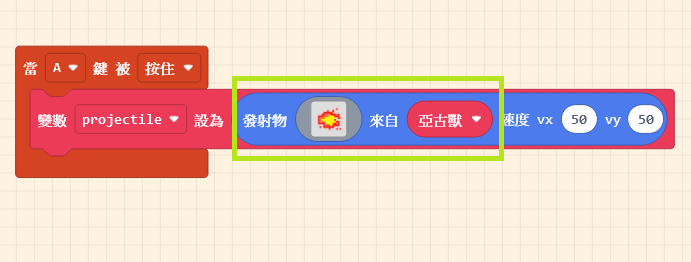
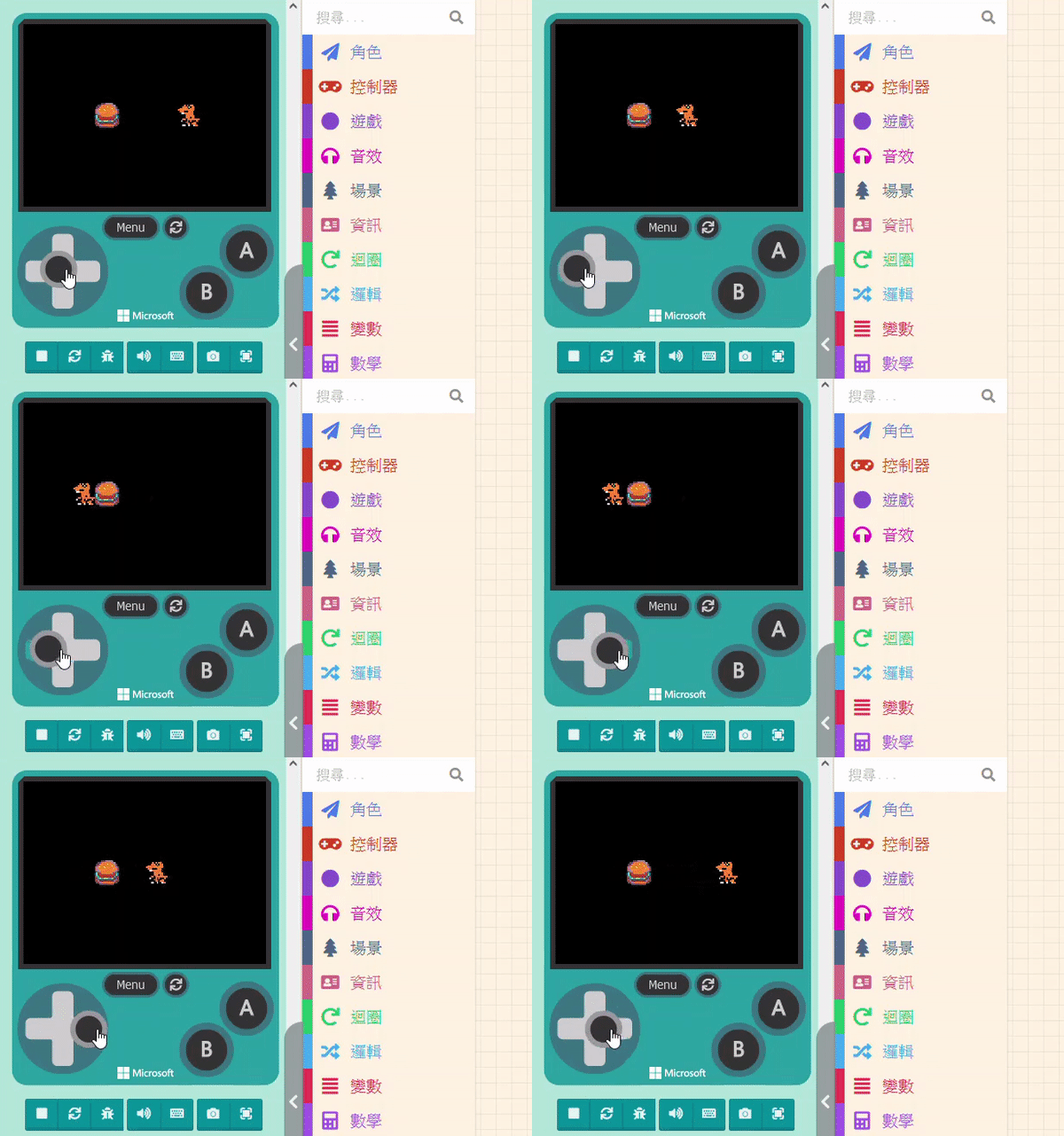
The effect of speed adjustment is shown below; feel free to experiment. Positive and negative values change the direction. Try changing vx to 30 and vy to 75, and see the result in the simulator.
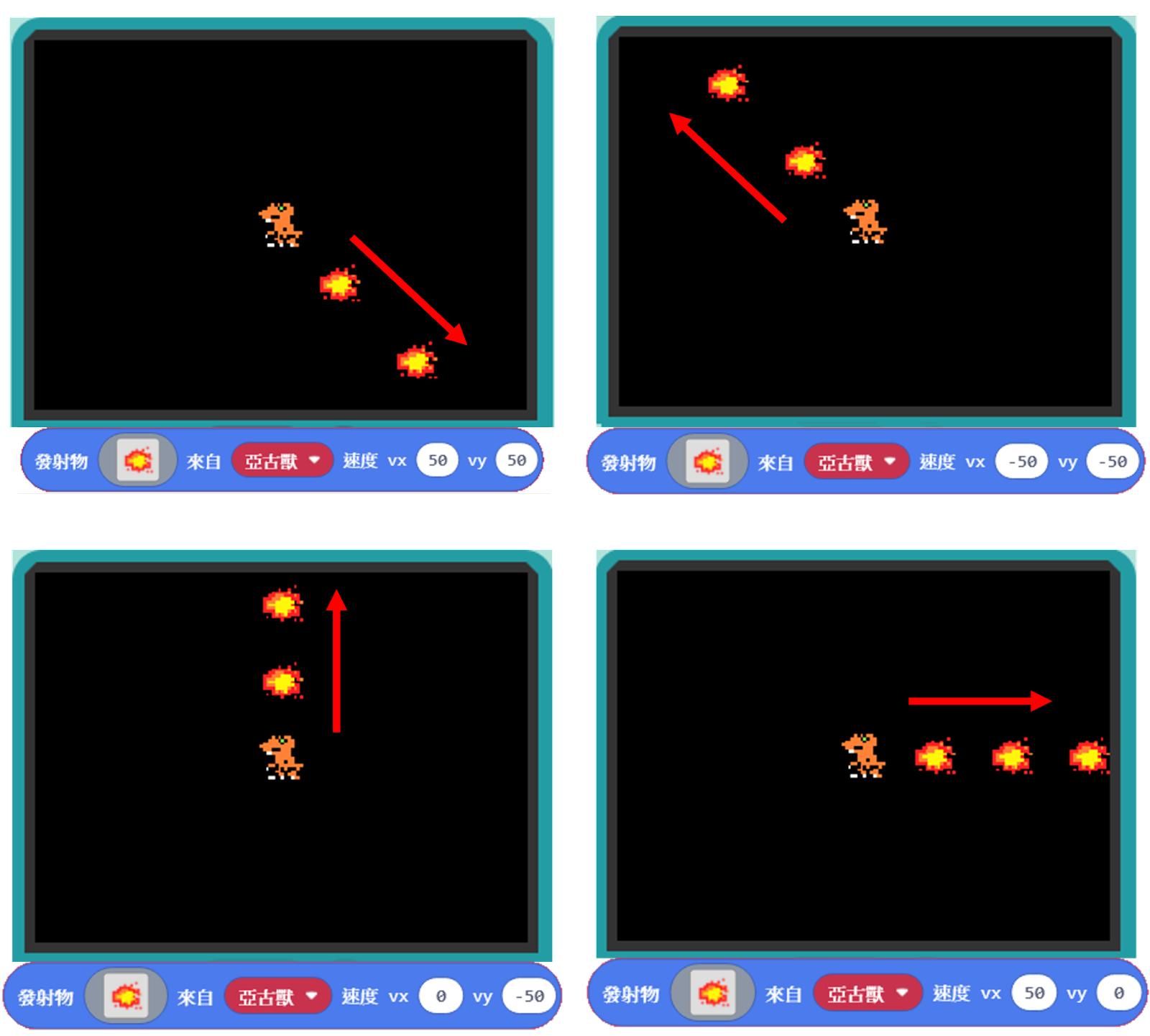
To make the drawn “Small Flame” move at maximum speed in the direction the character is facing, set it to move straight (e.g., from left to right, set vx to a positive value like 100 and vy to 0).