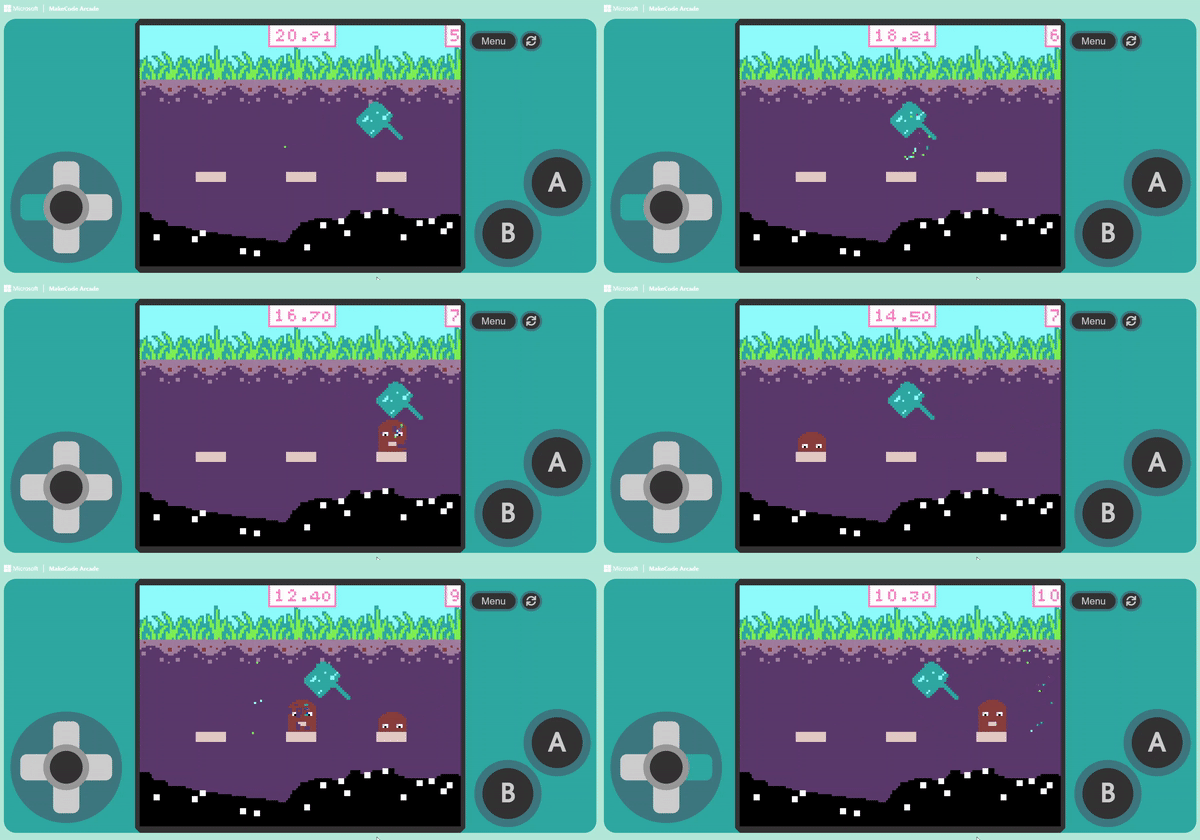
Please prepare the Sprite you created. Of course, you can also select one from the Gallery.

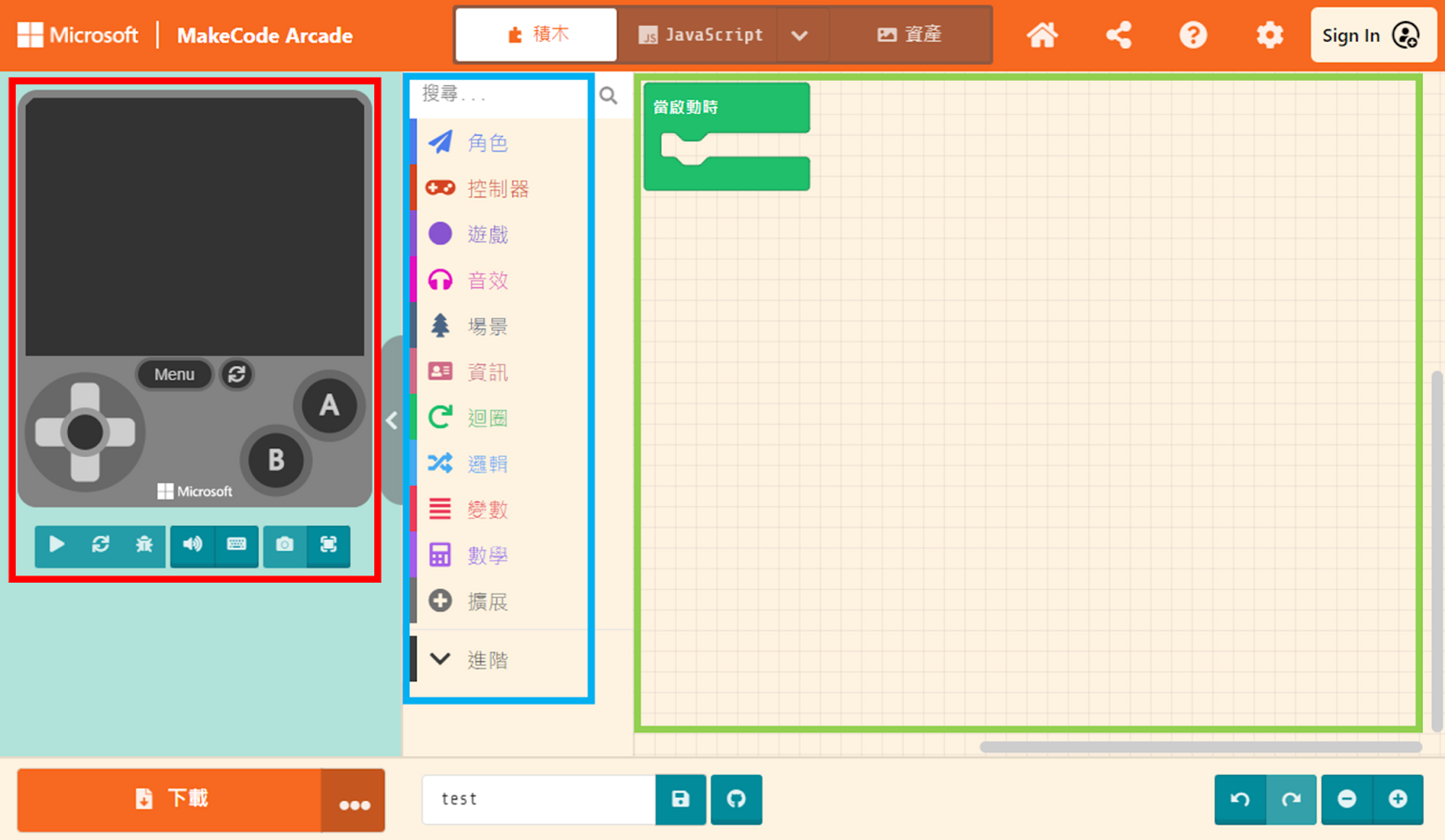
The features related to “Prompts” are located within the “Game” category in the Block Toolbox. Click it to find the relevant blocks in the list that pops out on the right.

First, let’s select the “splash (” “) “ block and place it at the very top inside the “on start” block.

We can type some messages into this block; both Chinese and English are supported. Here, we demonstrate by typing some introductory text for the character, as shown below:

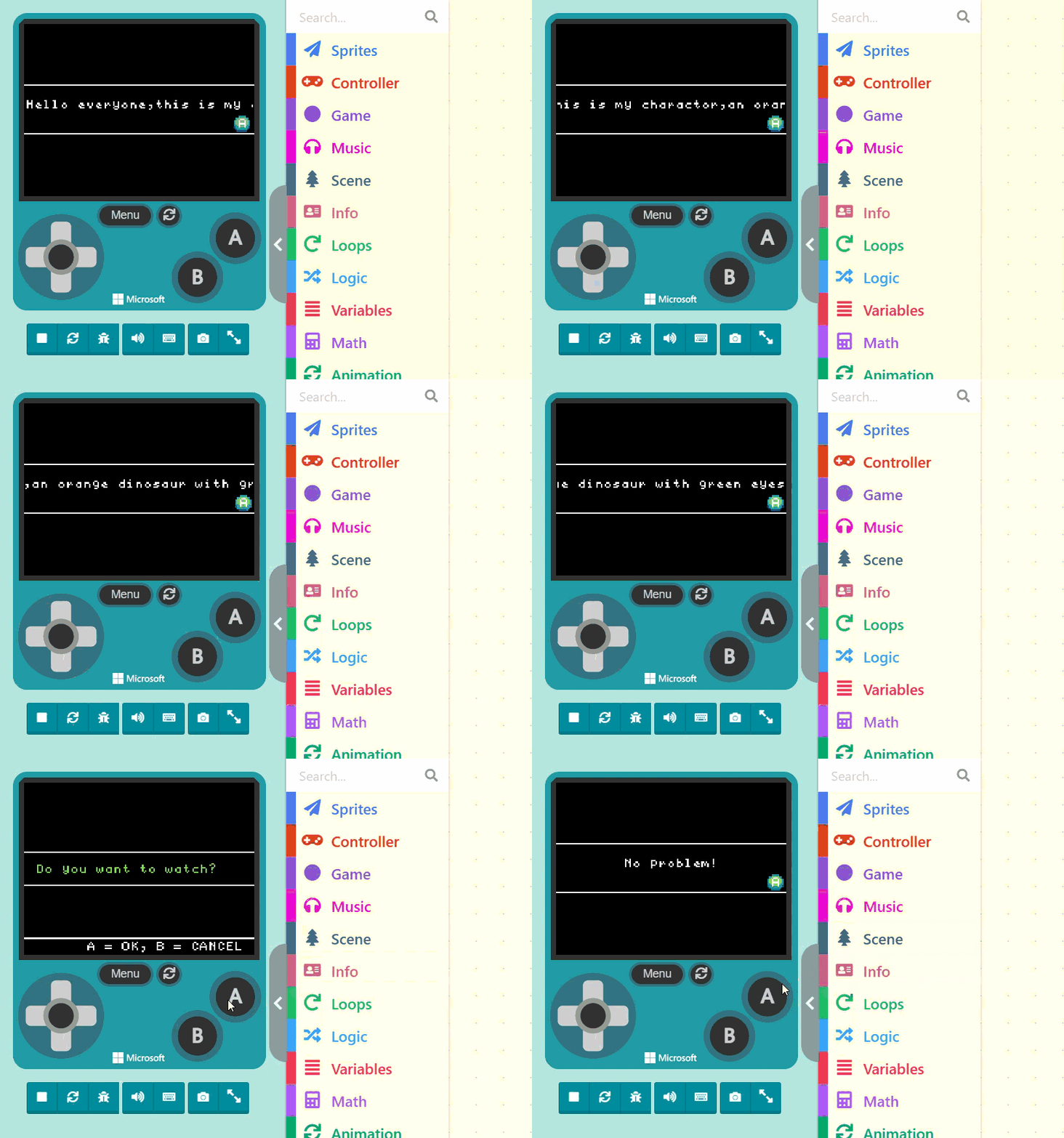
In the Game Simulator, we can see that after the game starts, a “Prompt” pops up immediately, waiting for the player to press the “A button”. The message displayed is the text we just entered.
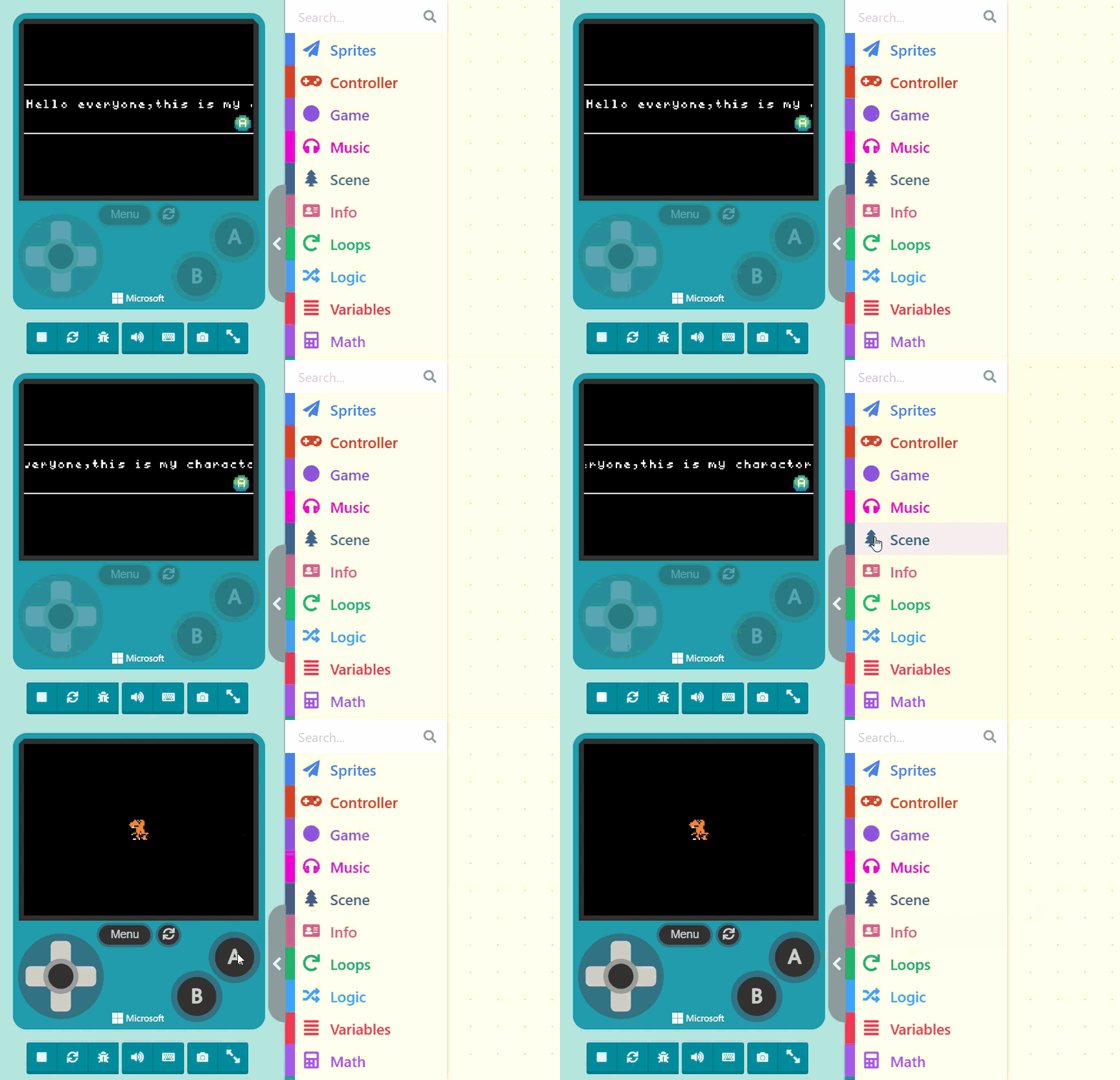
Before the A button is pressed, the “Prompt” screen will remain. The subsequent code will only execute after the button is pressed.
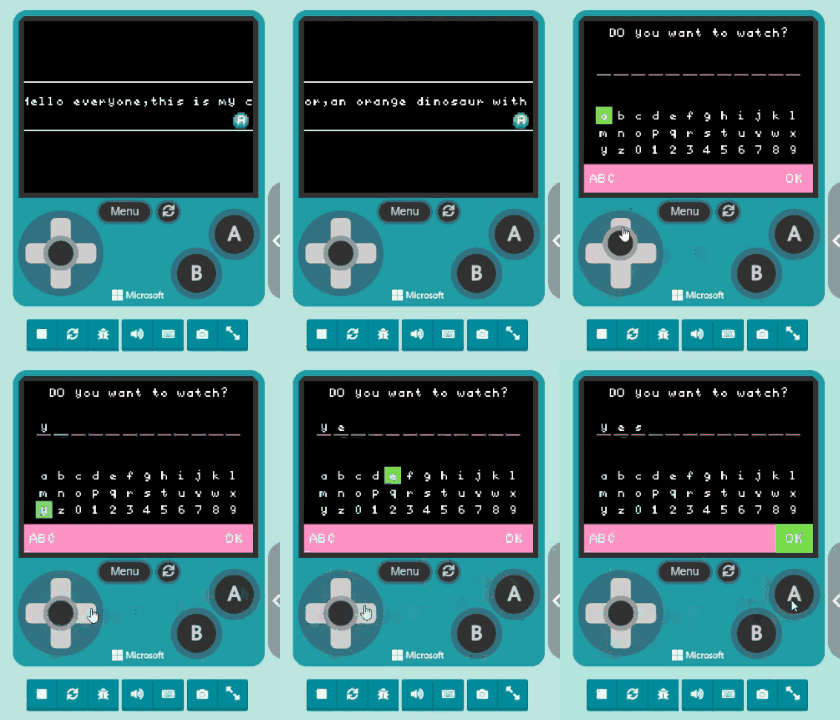
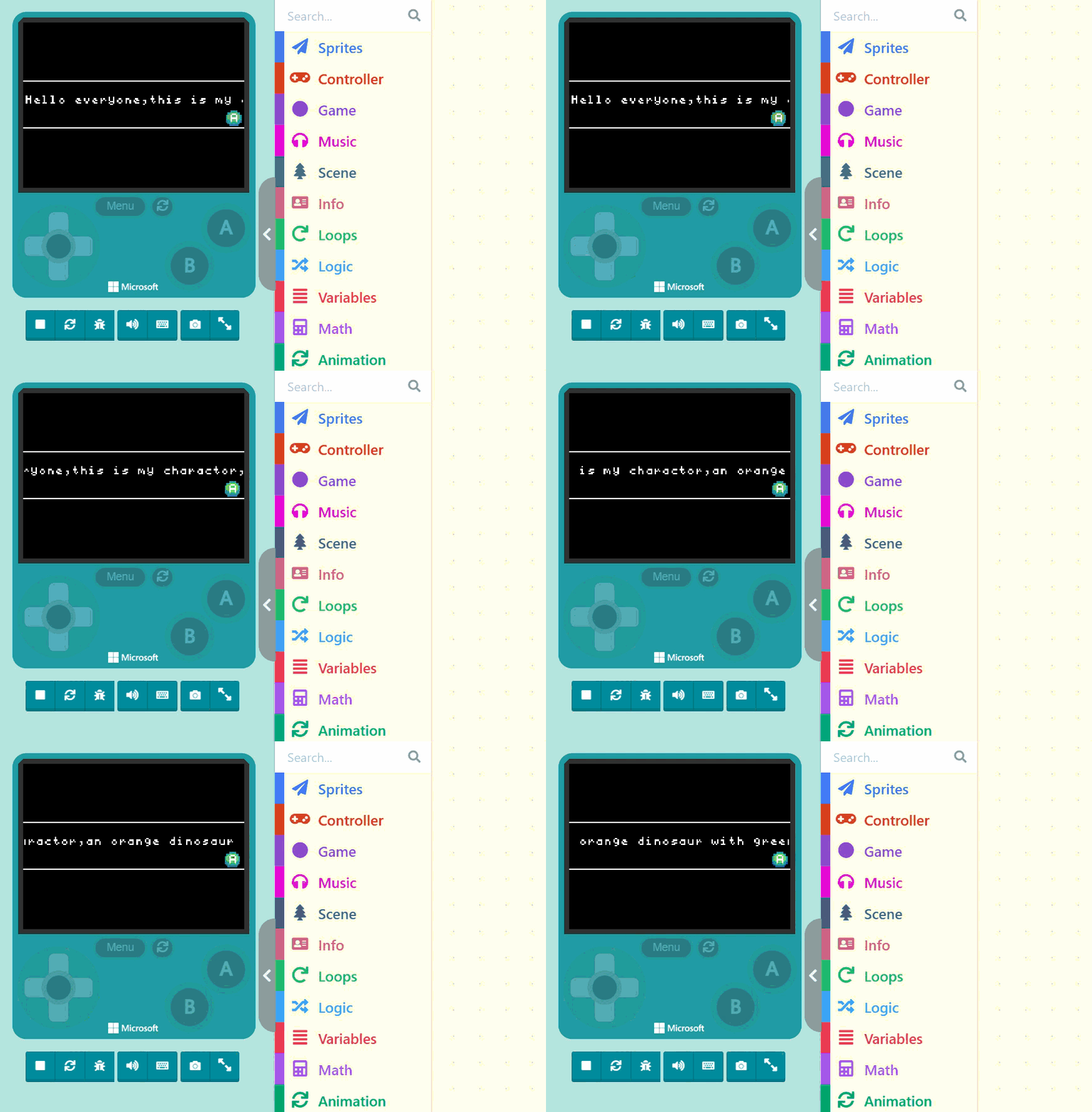
If the message you set is long, it will scroll to display the content. The display will pause briefly at the beginning, then scroll to the end of the message, repeating this cycle until you press the button, as shown below:
Besides displaying messages, “Prompts” also come with three “Ask” functions. Let’s start with the first one: “ask (” “)”.

If you are a familiar MakeCode user, you shouldn’t be strangers to “blocks with pointy ends” or “blocks with round ends” These types of blocks usually need to be combined with other blocks to function.
Hexagonal blocks (Pointy ends): Usually perform judgment functions and return two results: “True” or “False”.
Please click “Logic” in the Block Toolbox and select the “if <true> then… else…” block.
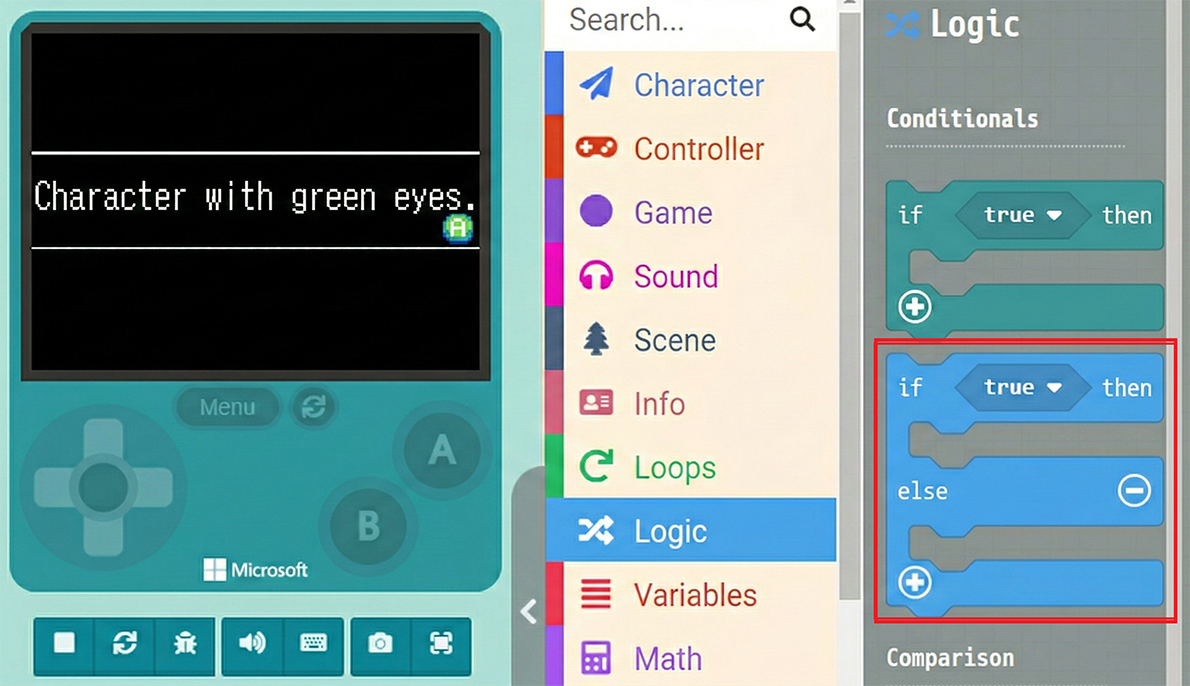
Combine them and place them as the second item inside “on start”, as shown below:
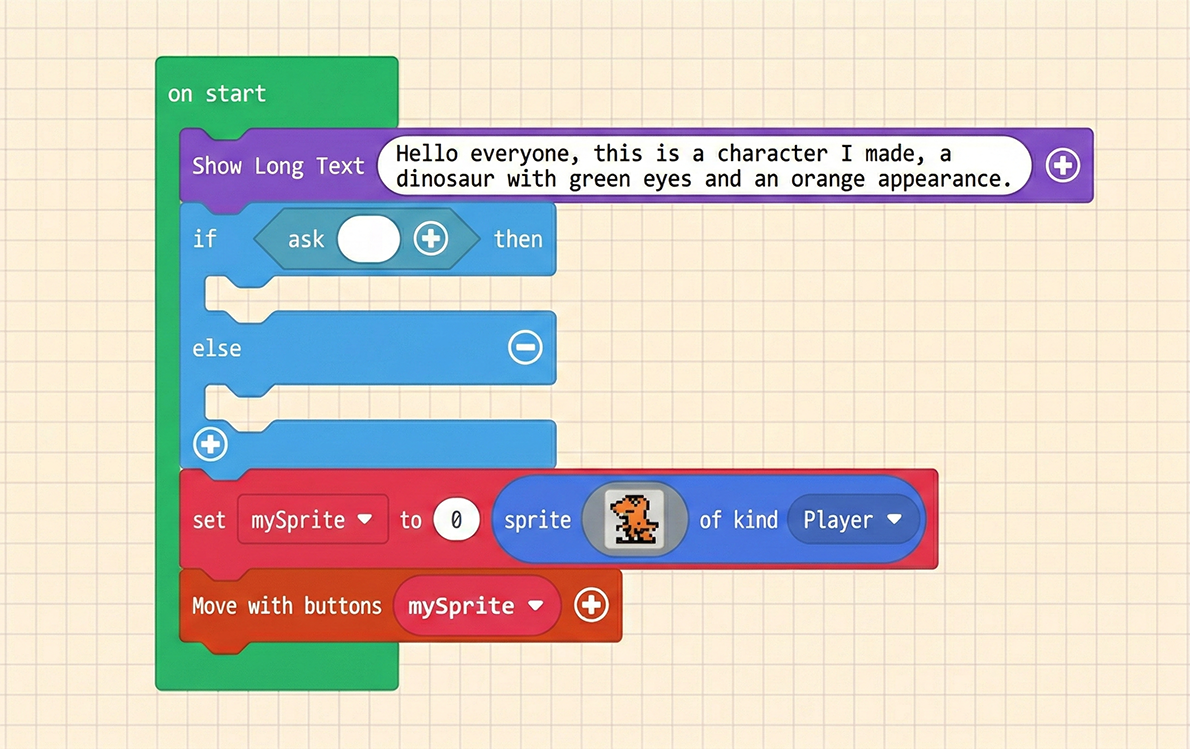
Enter a message inside the “ask (” “)” block, such as asking whether to view the character we made.
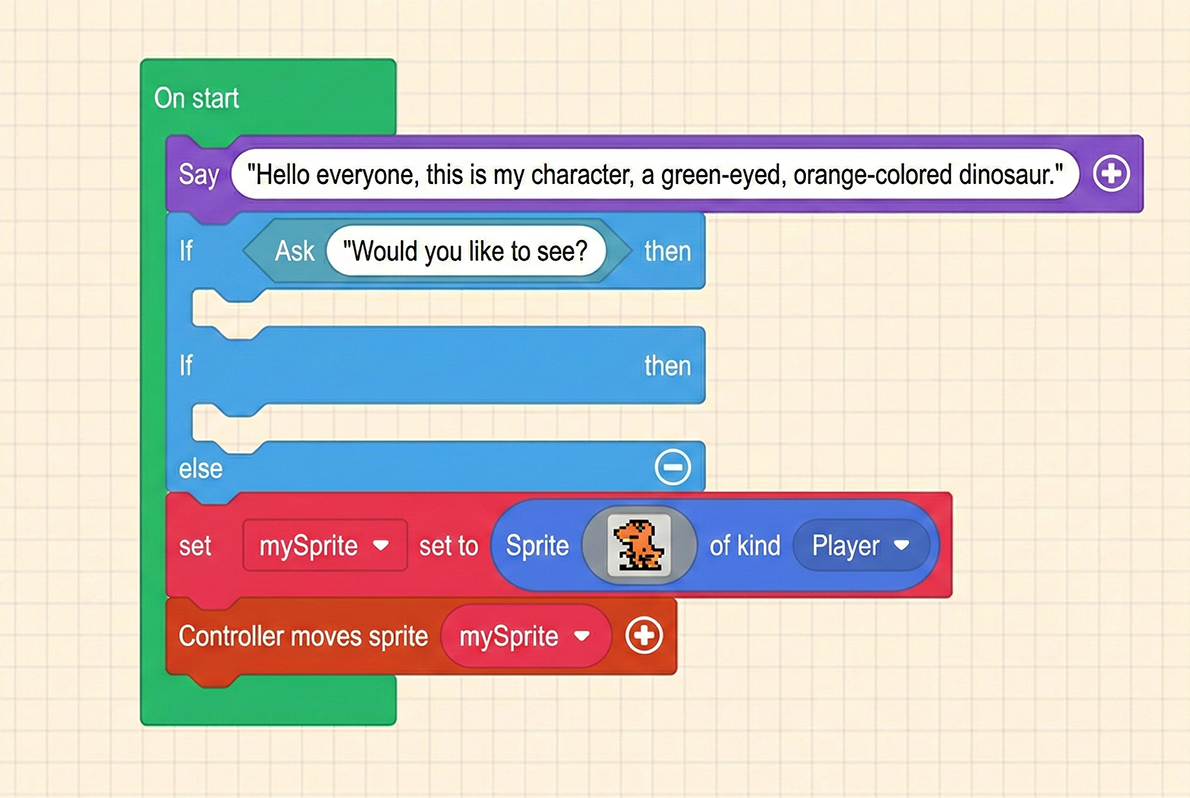
When we use “ask”, a window will pop up asking you to choose “OK” or “CANCEL”.
Choosing “OK” returns a “True” result.
Choosing “CANCEL” returns a “False” result.
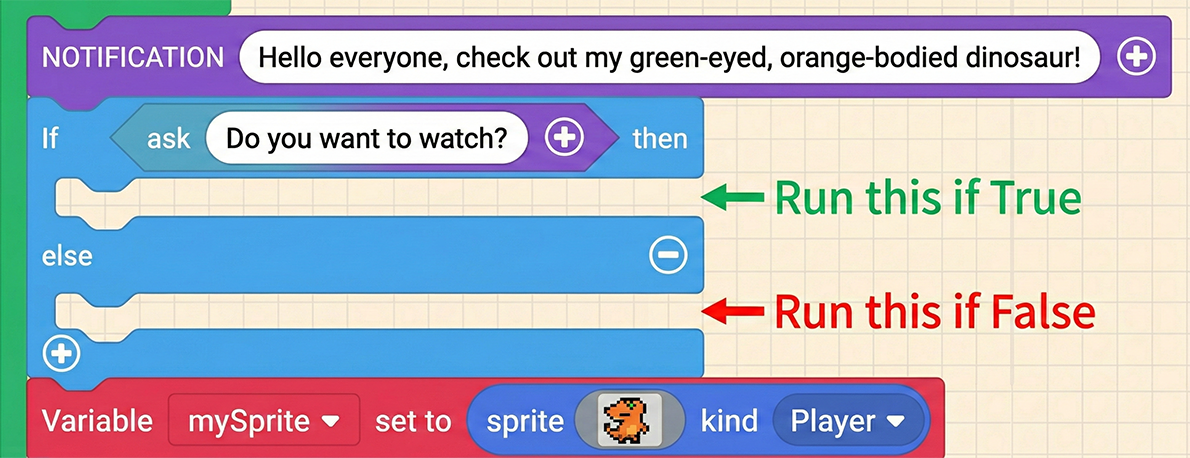
We can then fill in the corresponding follow-up messages in the appropriate positions, as shown below:
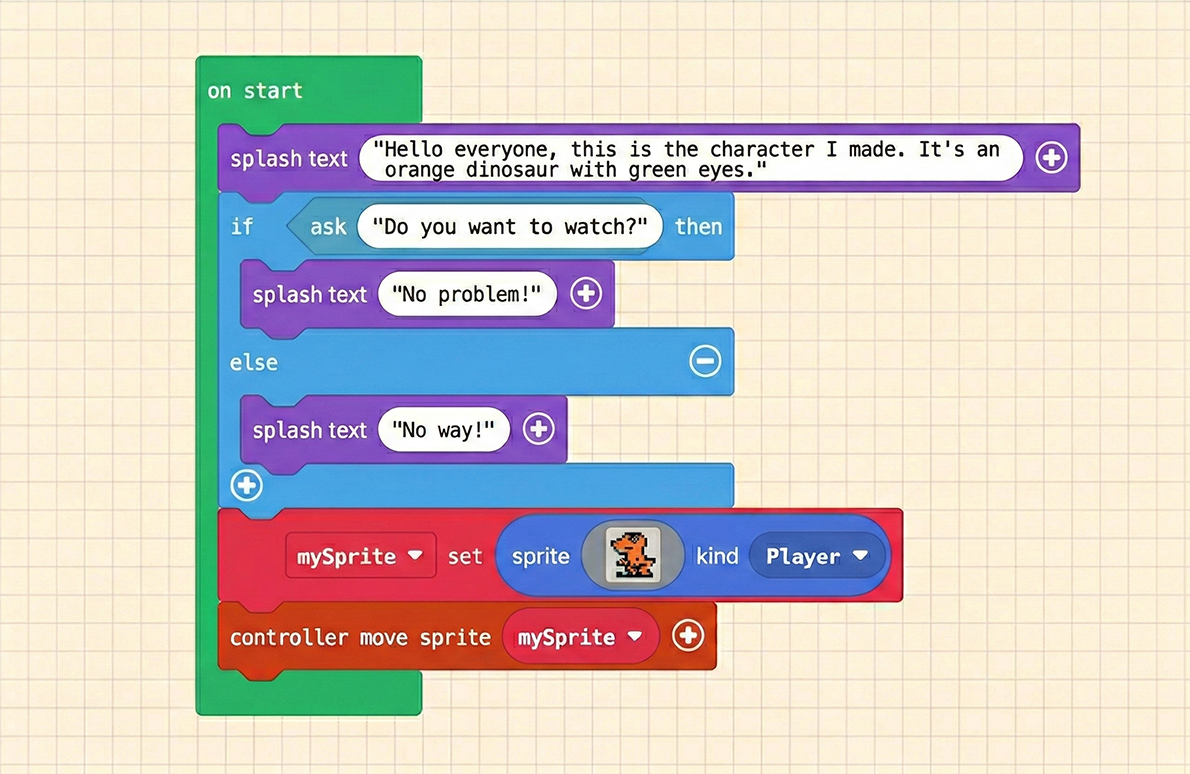
Once finished, test it in the Game Simulator.
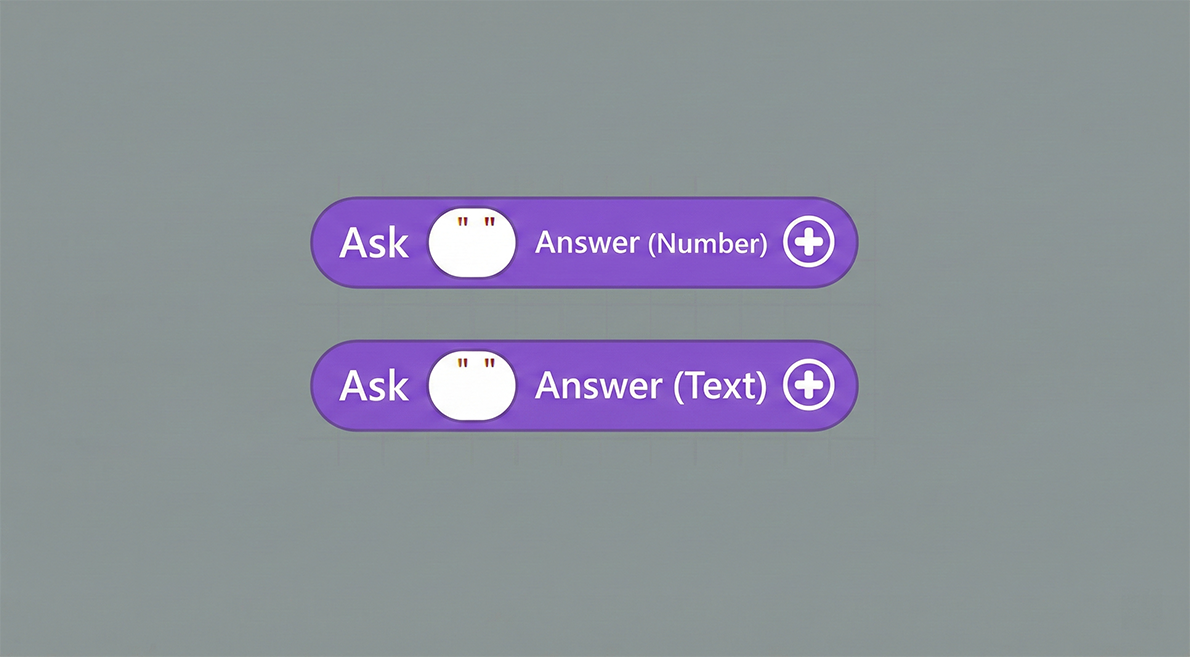
The other two “Ask” functions are similar, but they retrieve input content from the user. Let’s take “ask (” “) for string” as an example.
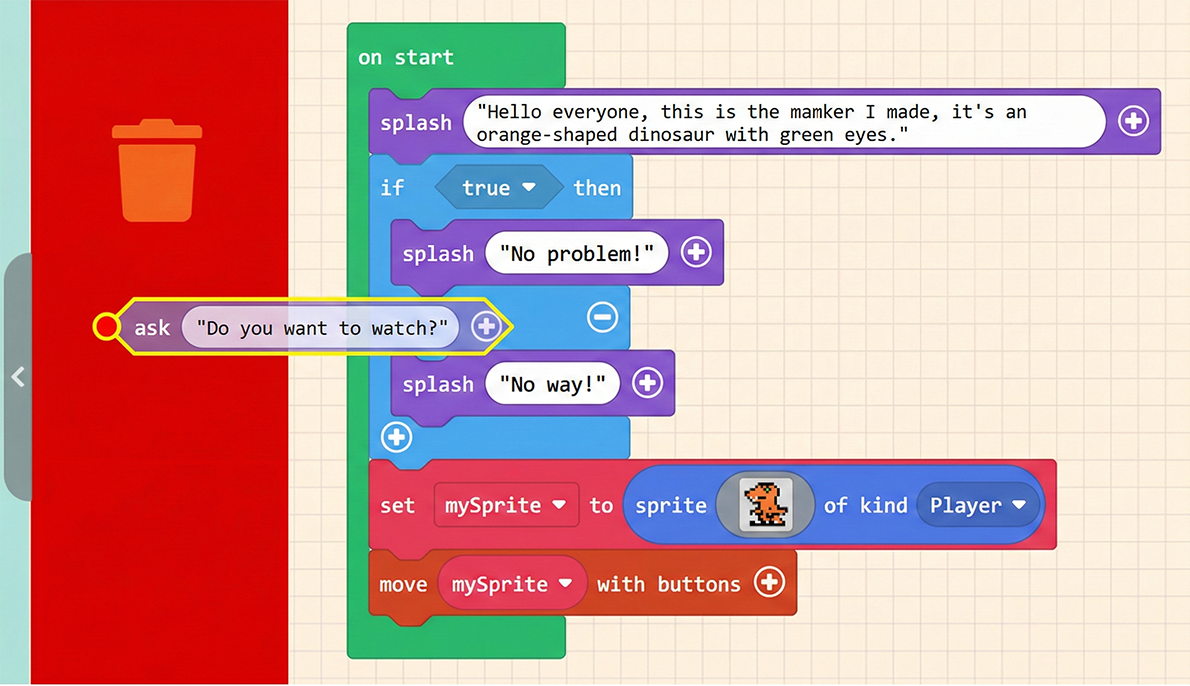
To facilitate the next steps, let’s first delete the “ask (” “)” block we just used.
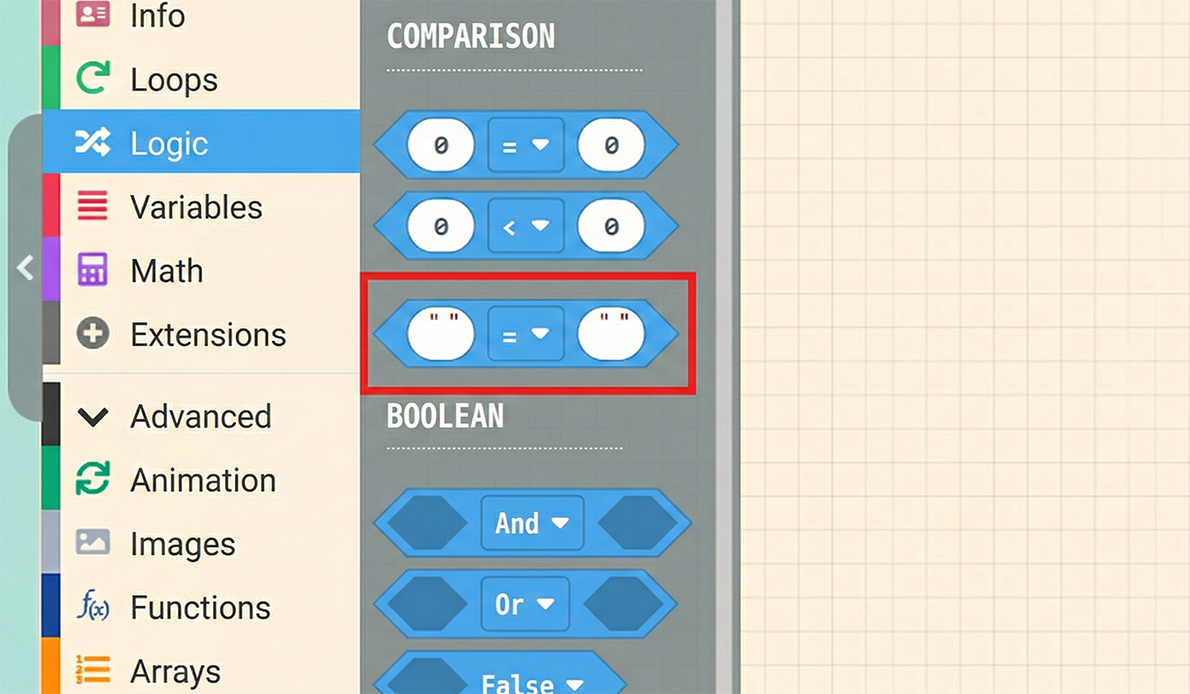
First, click “Logic” in the Block Toolbox and select the block highlighted in the image below (Comparison Block). This block allows us to compare if two texts match.
Next, combine the “text comparison” block with the “ask (” “) for string” block, and place it inside the “if… then…” block, as shown below:
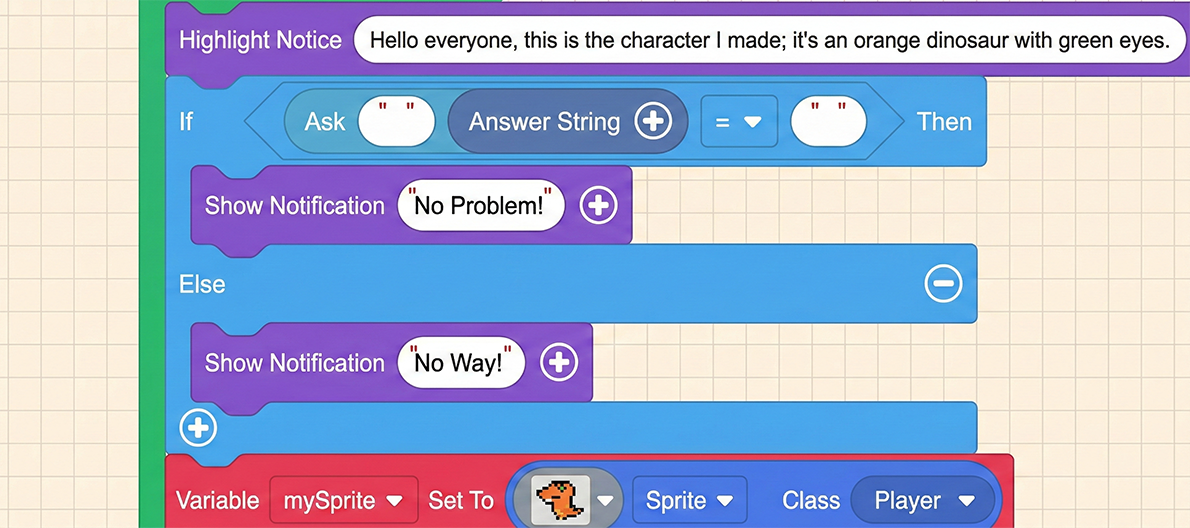
We can type our question inside the “ask” block and type the correct answer on the right side of the “equals sign”. Note that text input only supports English.
If the input content matches the answer, the program will execute the prompt “No problem!“.
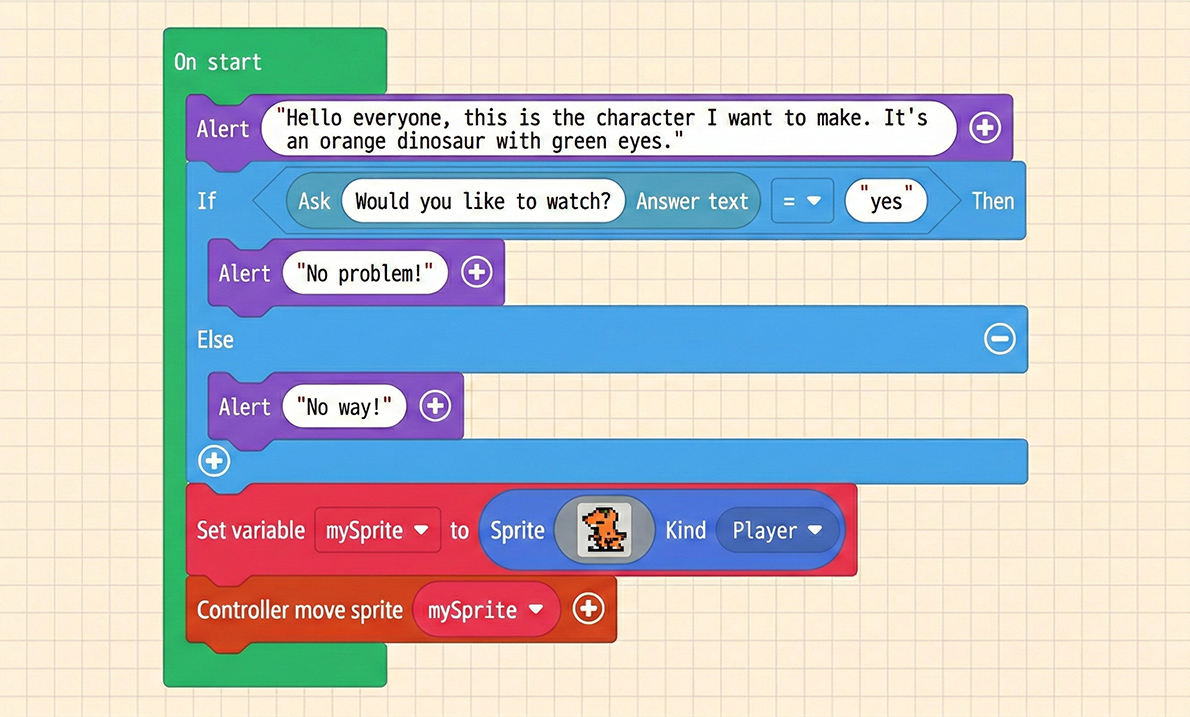
Once finished, test it in the Game Simulator. You can also try entering the wrong message to see the result.