As the name suggests, this is where you can instantly play your game. It allows you to verify if your code is working correctly—for example, checking if the character moves when a button is pressed, or if a projectile follows the intended path.
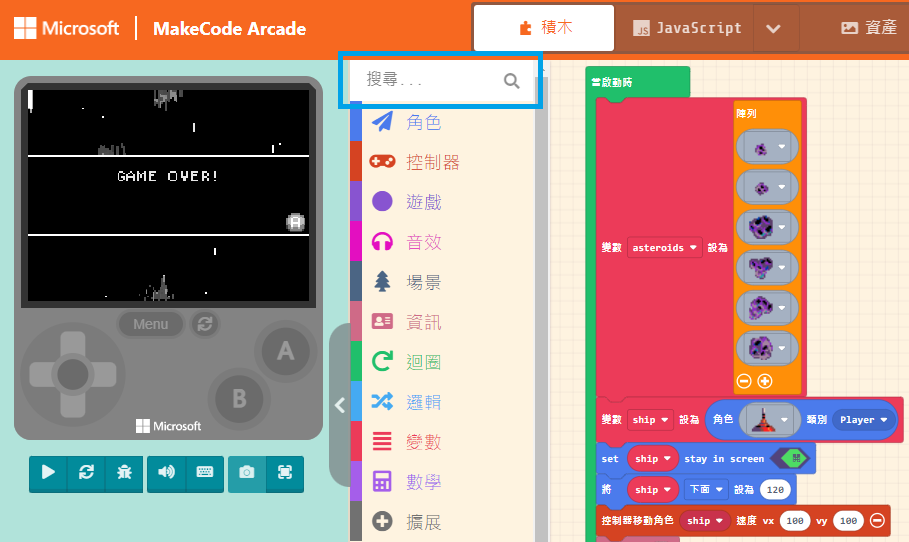
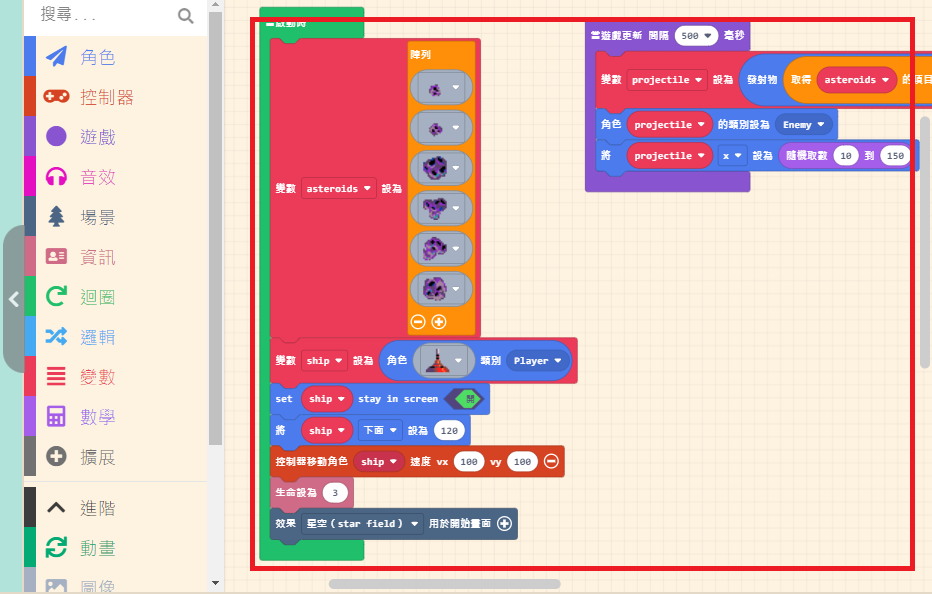
First, let’s follow the method taught in the previous unit and open the example program “Space Destroyer” to demonstrate.
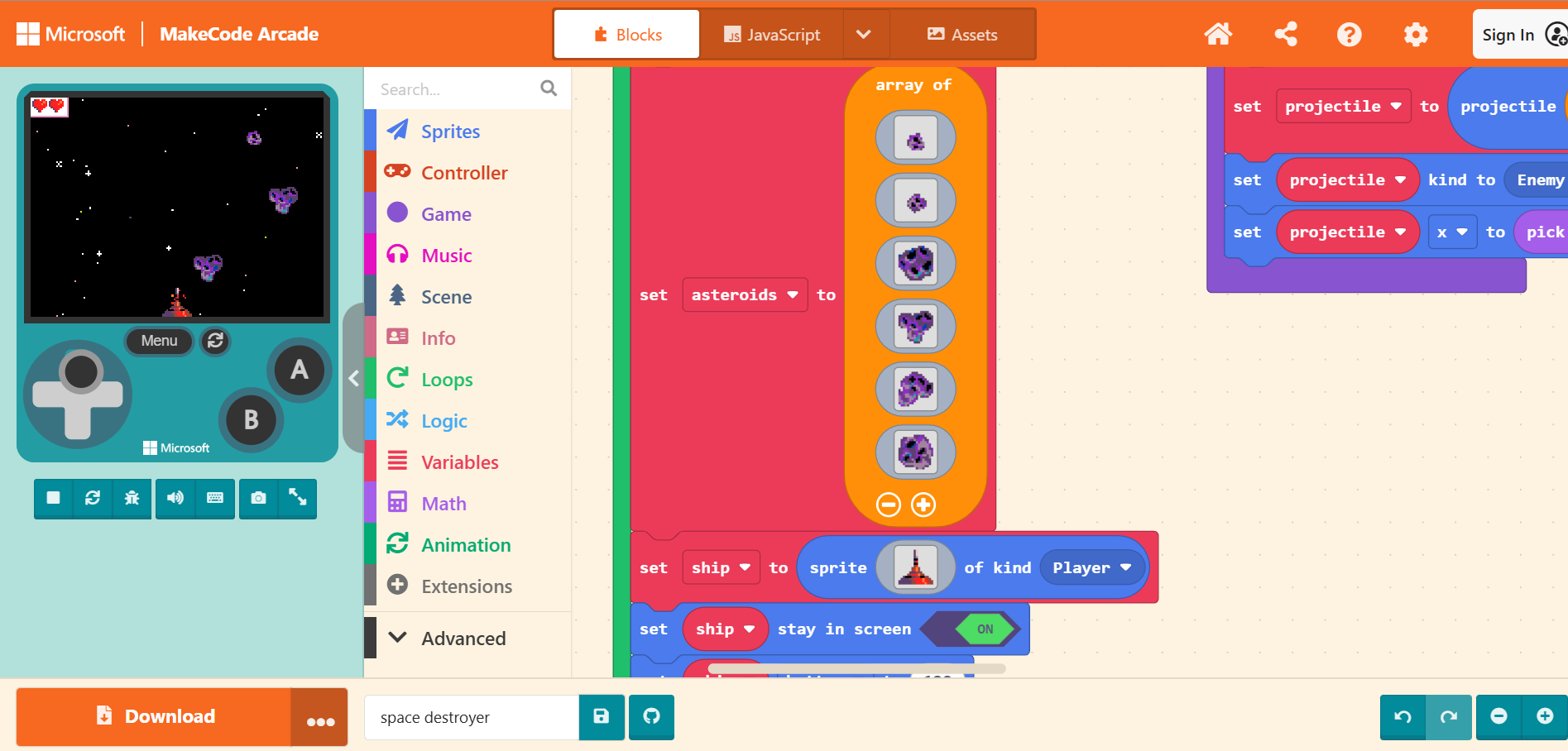
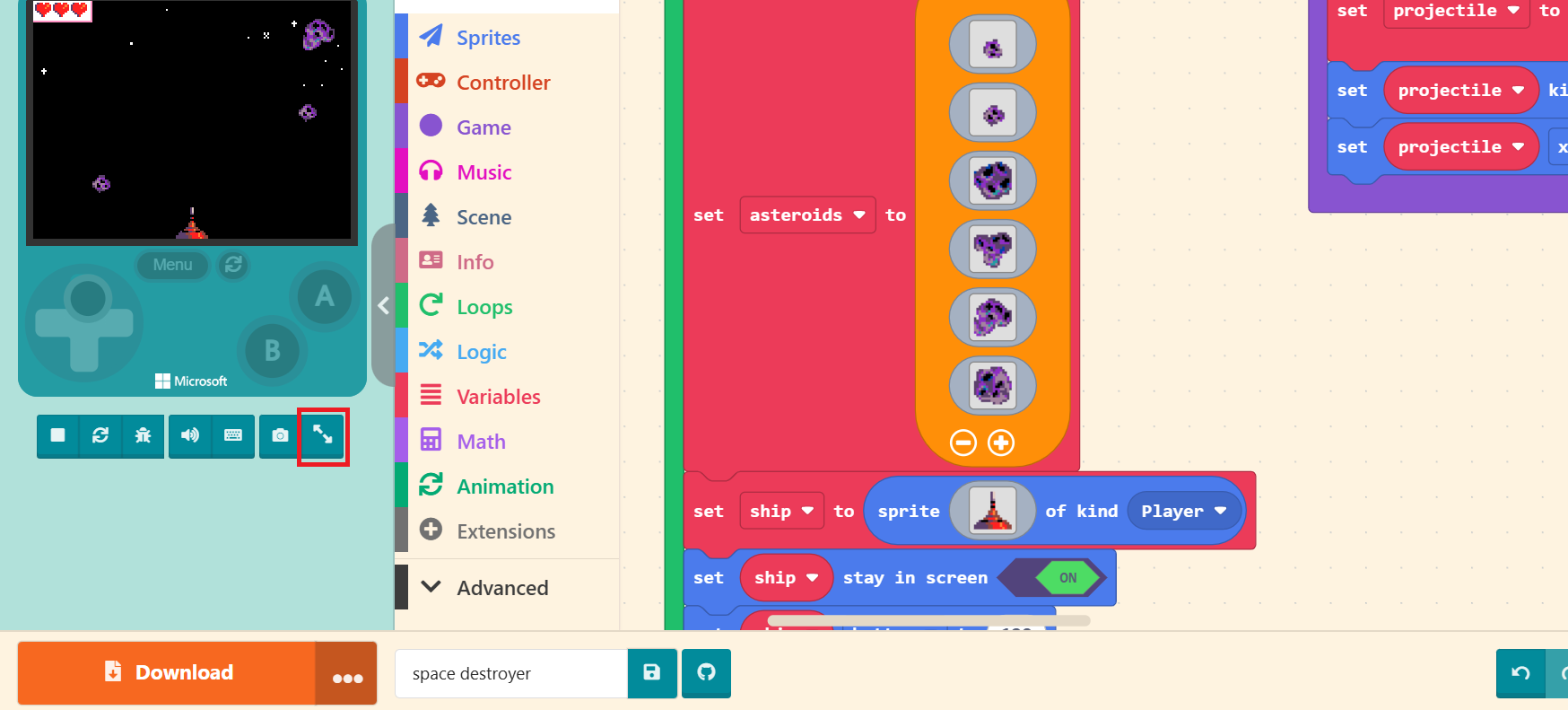
Once the webpage finishes initializing, we can click the buttons and joystick on the simulator to start enjoying the game. However, before you even play, your first impression might be: “The screen is too small, isn’t it?” Playing games shouldn’t be a struggle. Below the console image, there is a row of Control Buttons. The rightmost one is the “Toggle Full Screen” button. Please click it. The game screen will expand to fit your browser window size. You can adjust the window size yourself after finishing your game design.
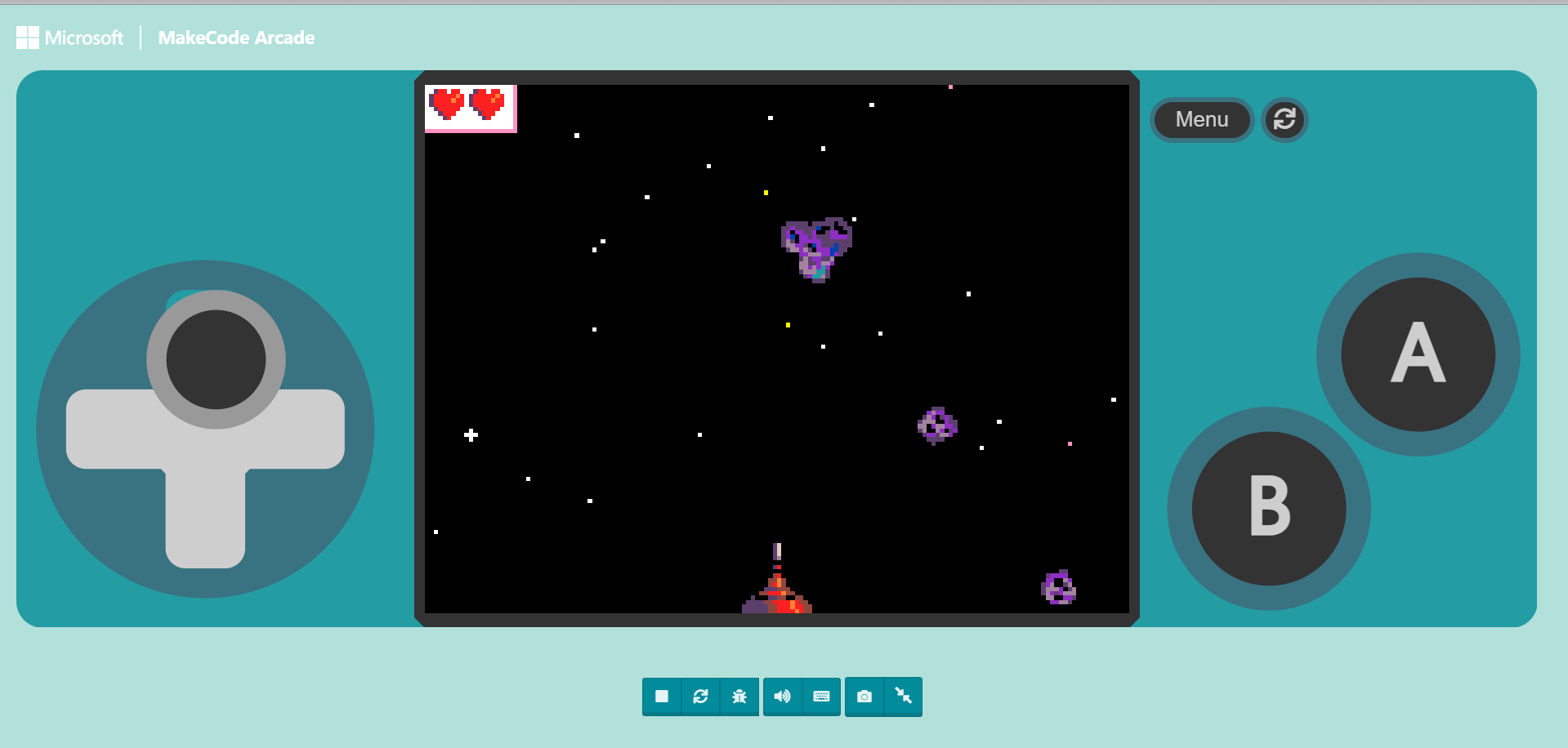
Although the screen is bigger, you will immediately realize the next problem: we only have one mouse cursor, making it impossible to operate the joystick and buttons simultaneously. Can we use a keyboard?
In the Control Buttons bar, there is a “Keyboard Shortcut” button. Clicking this will open a help window showing how the game buttons map to your keyboard keys. It even supports two-player battles on the same keyboard.
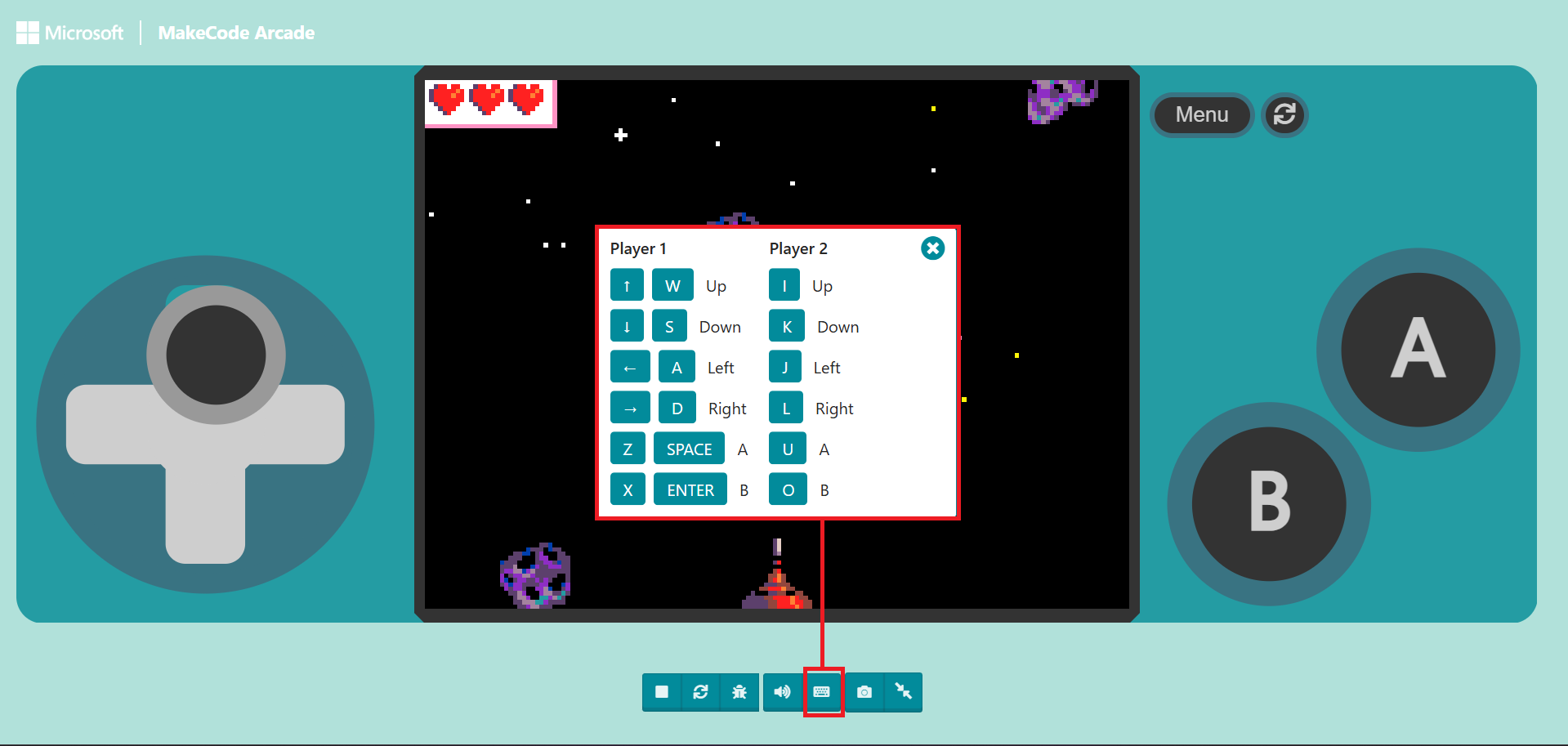
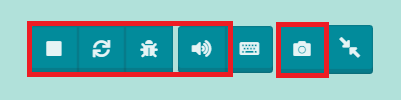
The remaining Control Buttons, from left to right, are “Stop/Start”, “Restart”, “Debug”, and “Screenshot”. We will have a separate chapter dedicated to explaining the “Debug” function later. Feel free to test the other buttons now.