
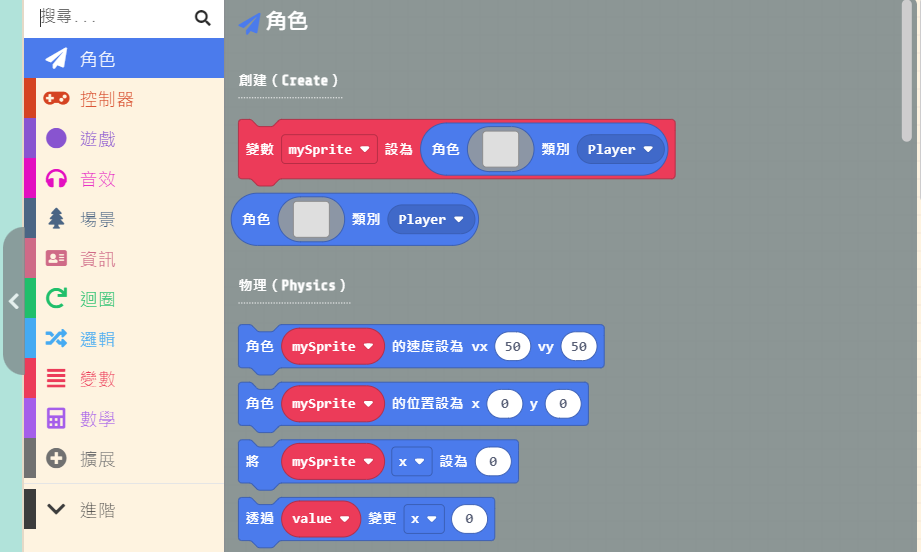
This area stores all our code blocks. Click on any category to explore; for example, if you click “Sprites”, a list of code blocks related to “Sprites” will pop out on the right. The “Advanced” section at the bottom contains even more options, which you can click through to explore […]
Game:bit – Learning Computational Thinking Through Play
60 posts
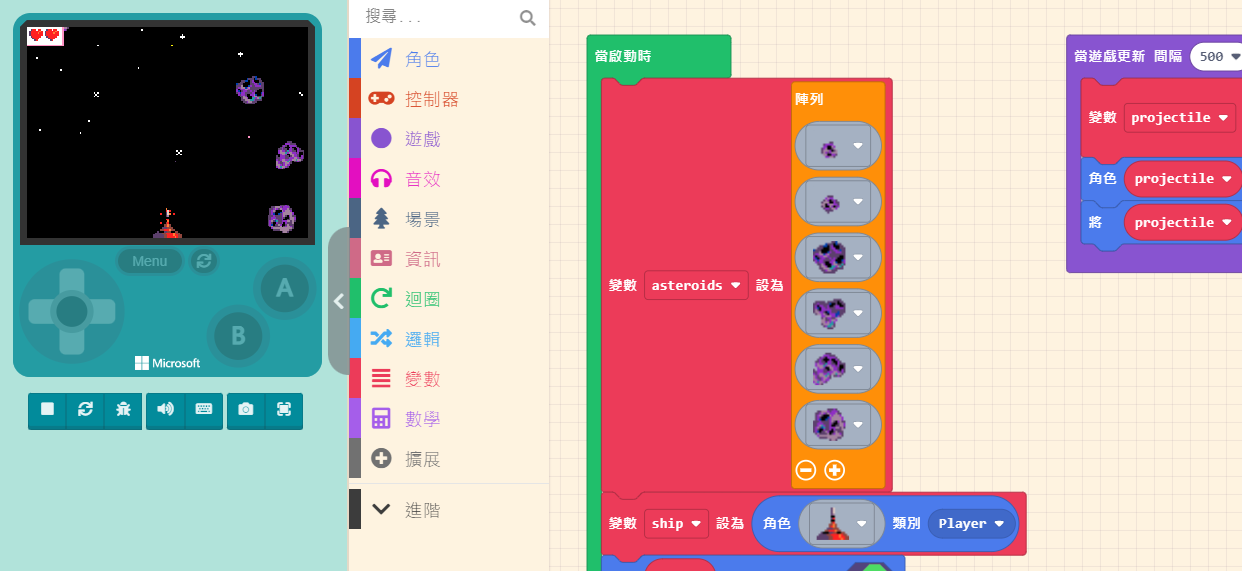
As the name suggests, this is where you can instantly play your game. It allows you to verify if your code is working correctly—for example, checking if the character moves when a button is pressed, or if a projectile follows the intended path. First, let’s follow the method taught in […]
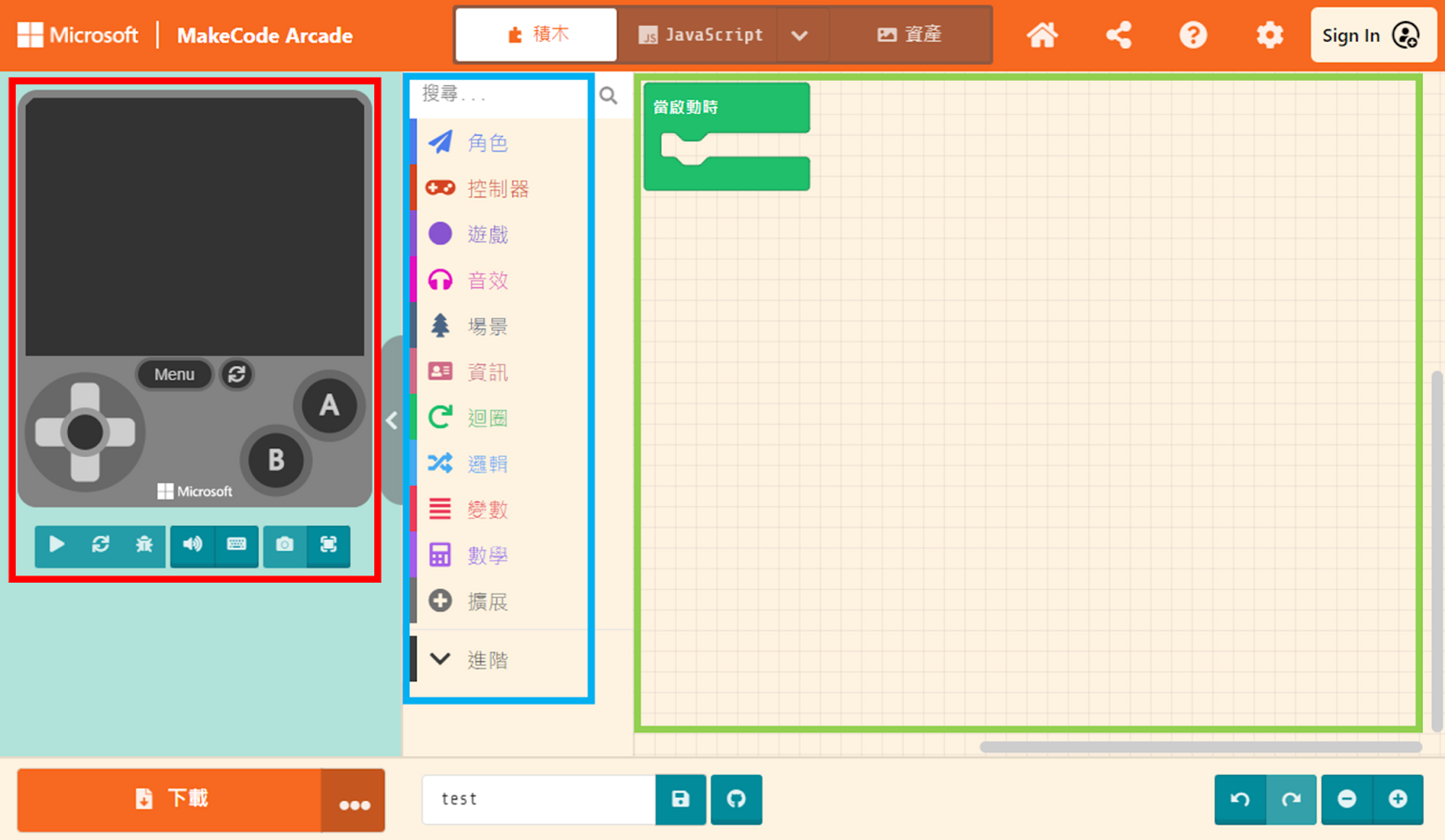
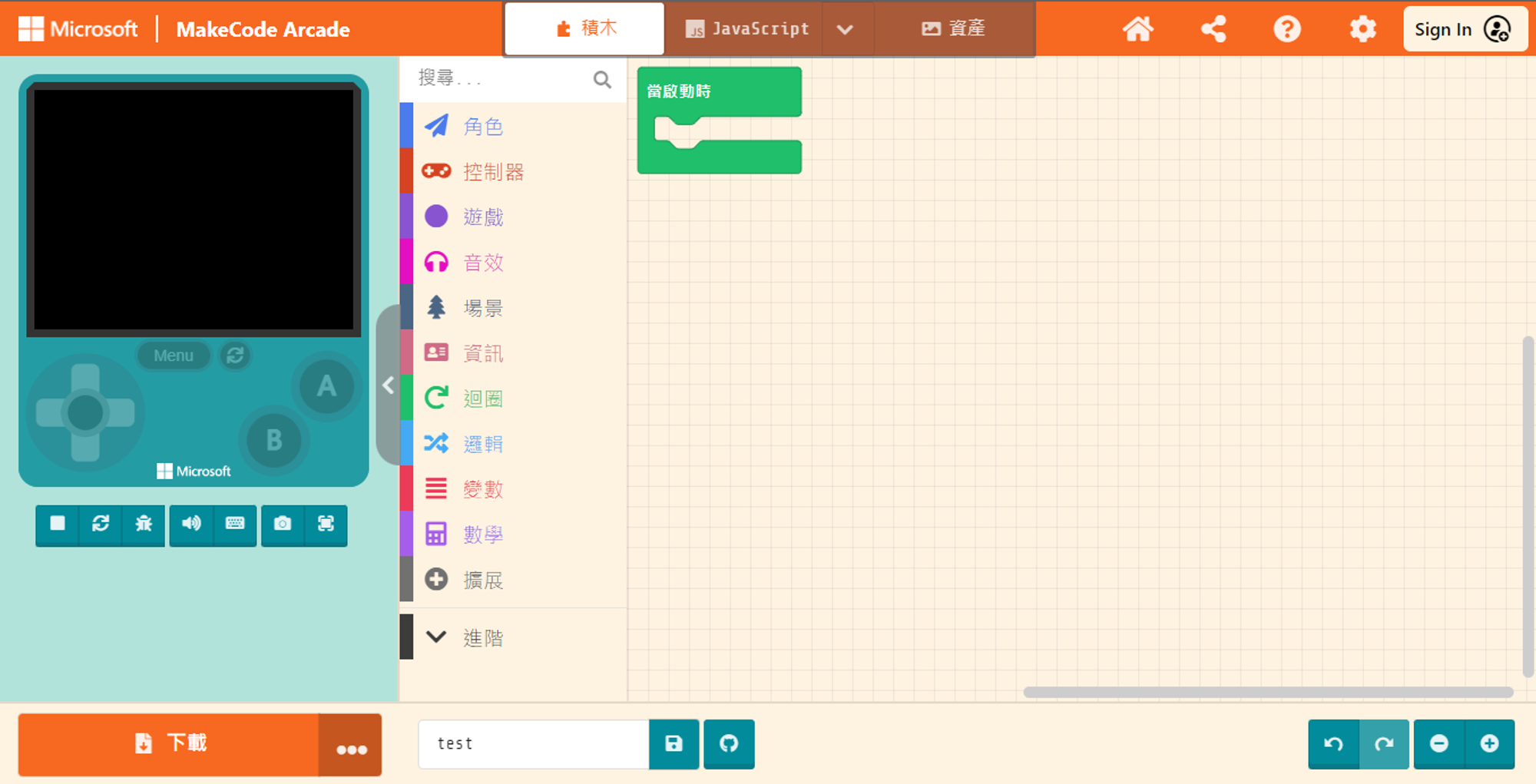
MakeCode Arcade is primarily divided into three main sections. From left to right, they are the Game Simulator, the Block Toolbox , and the Workspace. 3.1.1 The Game Simulator As the name suggests, this is where you can instantly play your game. It allows you to verify if your code […]
3.1 Getting to Know the Interface MakeCode Arcade is primarily divided into three main sections. From left to right, they are the Game Simulator, the Block Toolbox , and the Workspace. 3.1.1 The Game Simulator As the name suggests, this is where you can instantly play your game. It allows […]
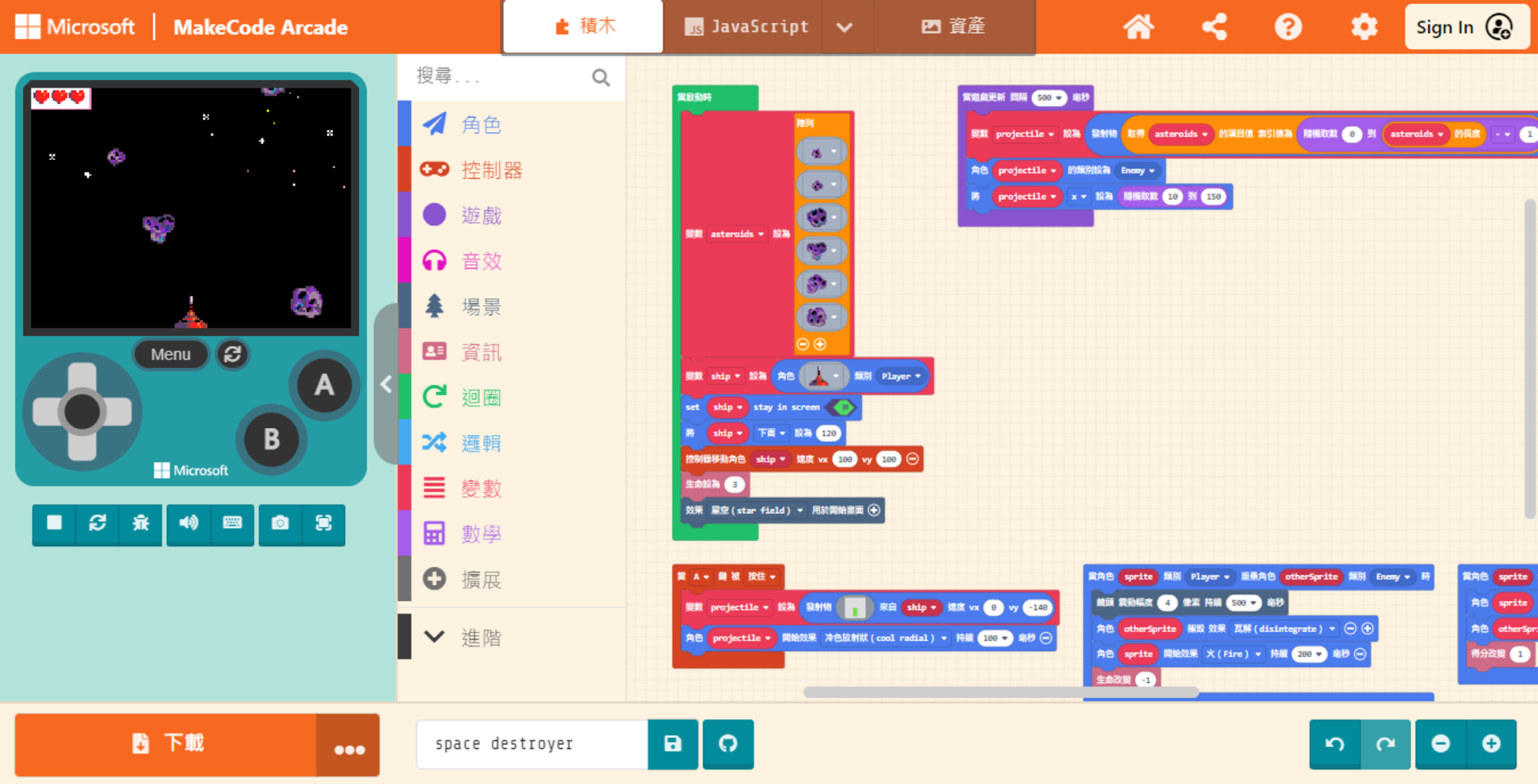
URL:https://arcade.makecode.com/beta?hw=n3 After opening your browser and entering the URL, you will see the “New Project” button and various content below. Scroll down and carefully browse the content to find the “Blocks Games” section. These options are example programs pre-built by Microsoft. Not only can you refer to them to learn […]
Microsoft Arcade Games is a learning platform interface created by Microsoft. If you are interested in programming and game creation, this platform is your definitive choice. You can use this platform to build your own 2D games, turning your ideas and stories into real gaming experiences. With MakeCode Arcade, you […]