
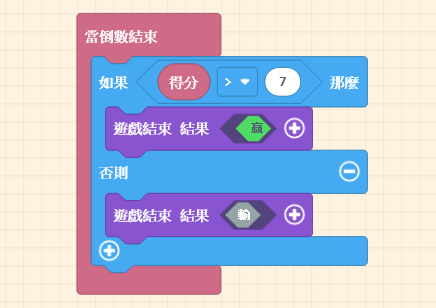
We are going to add conditions to determine victory or defeat, transforming the simple “Orange Dinosaur eats Burger” interaction into an exciting mini-game. For example, we can add a “Scoring Mechanism” where eating a burger adds a point, and the eaten burger “Randomly” respawns elsewhere. Or, we could add “bad […]
Game:bit – Learning Computational Thinking Through Play
60 posts
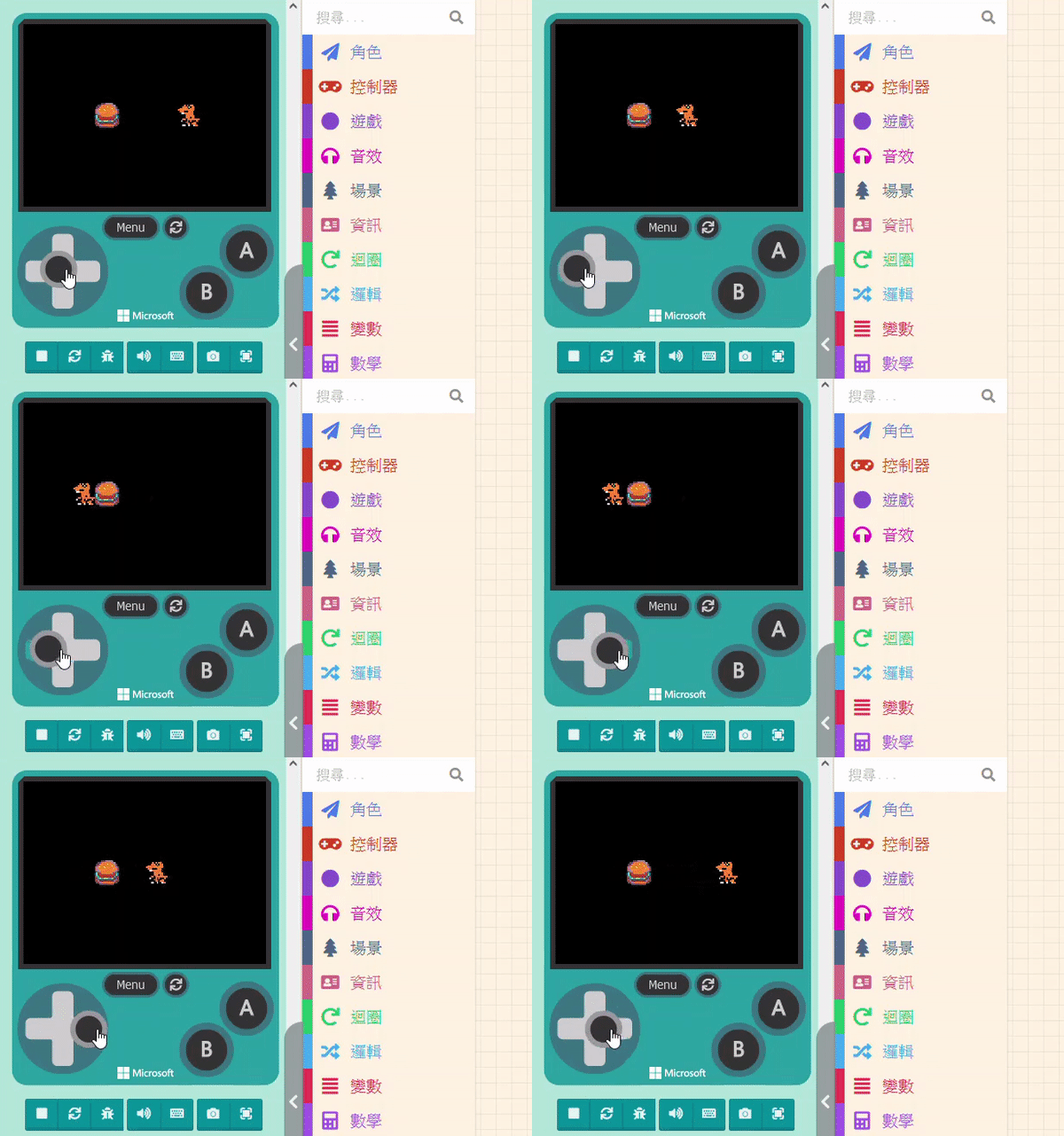
If we want the “Orange Dinosaur” to eat the “Burger“—meaning the Burger disappears when the Dinosaur “collides” with it—we need to use the concept of “Overlaps.” This allows us to program subsequent events when the images of two sprites overlap. Please click on “Sprites” in the Block Toolbox, scroll down […]
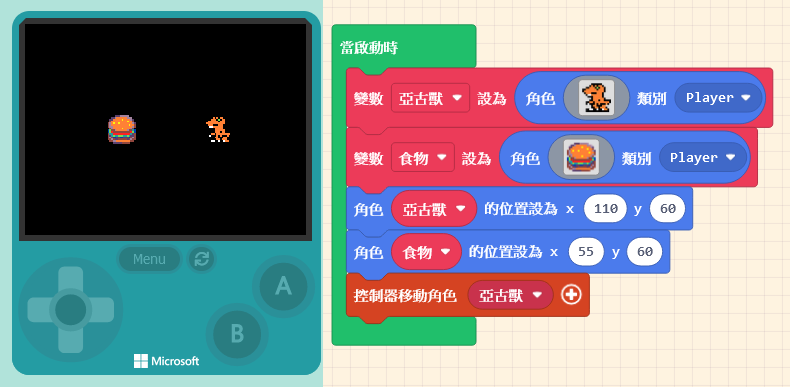
Next, let’s create a second sprite. Click on “Sprites” in the Block Toolbox, use the create sprite block, place it inside “on start,” and design its appearance (in this example, we selected a Burger from the Gallery). You will notice that the default “Variable Name” has changed automatically. The editor […]
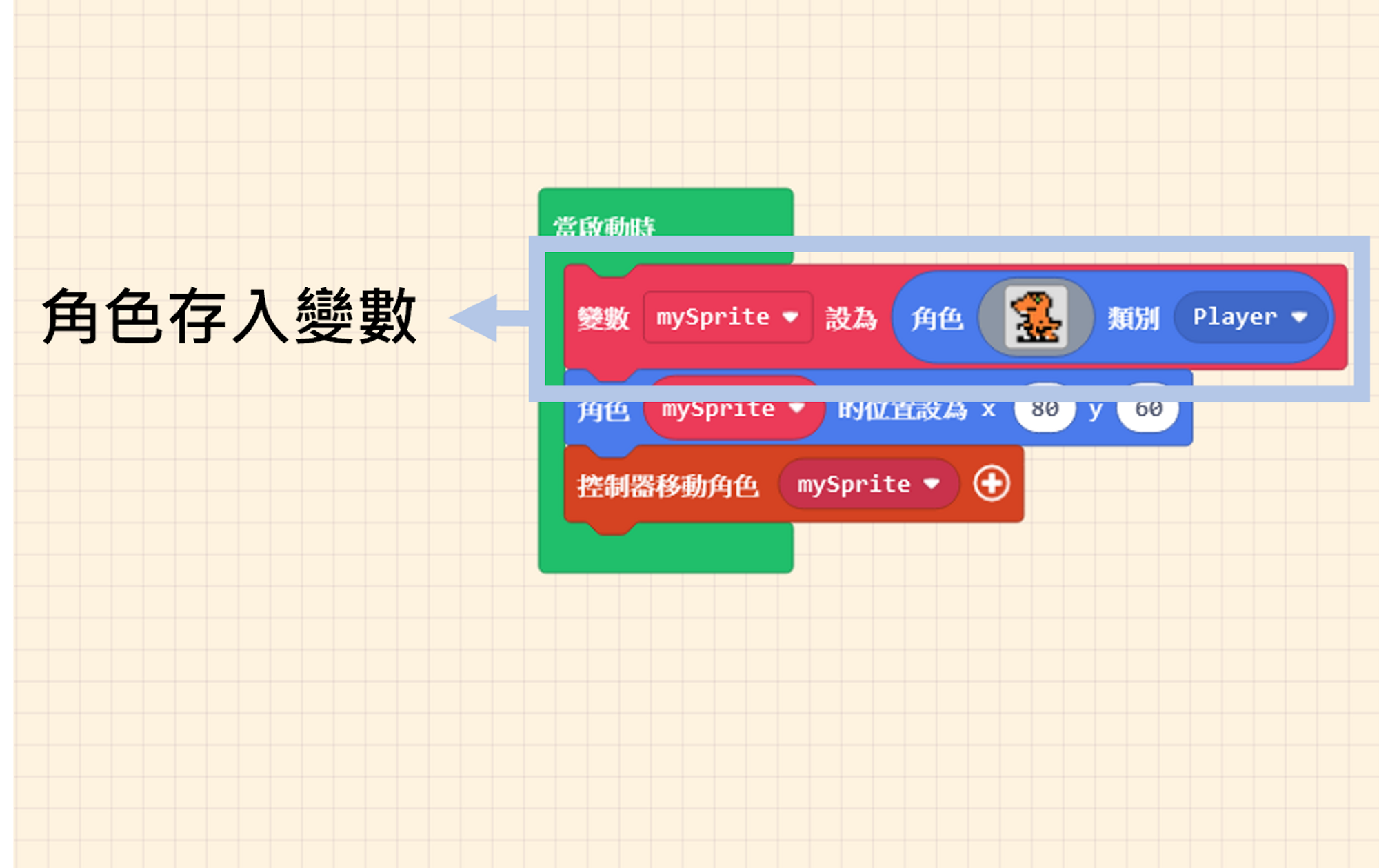
Let’s return to the code. During the sprite creation process, we placed our designed sprite into a “Variable.” Just like our understanding of the box metaphor: once the sprite is stored, the data won’t change unless we modify it. You can see that this variable has a name. To avoid […]
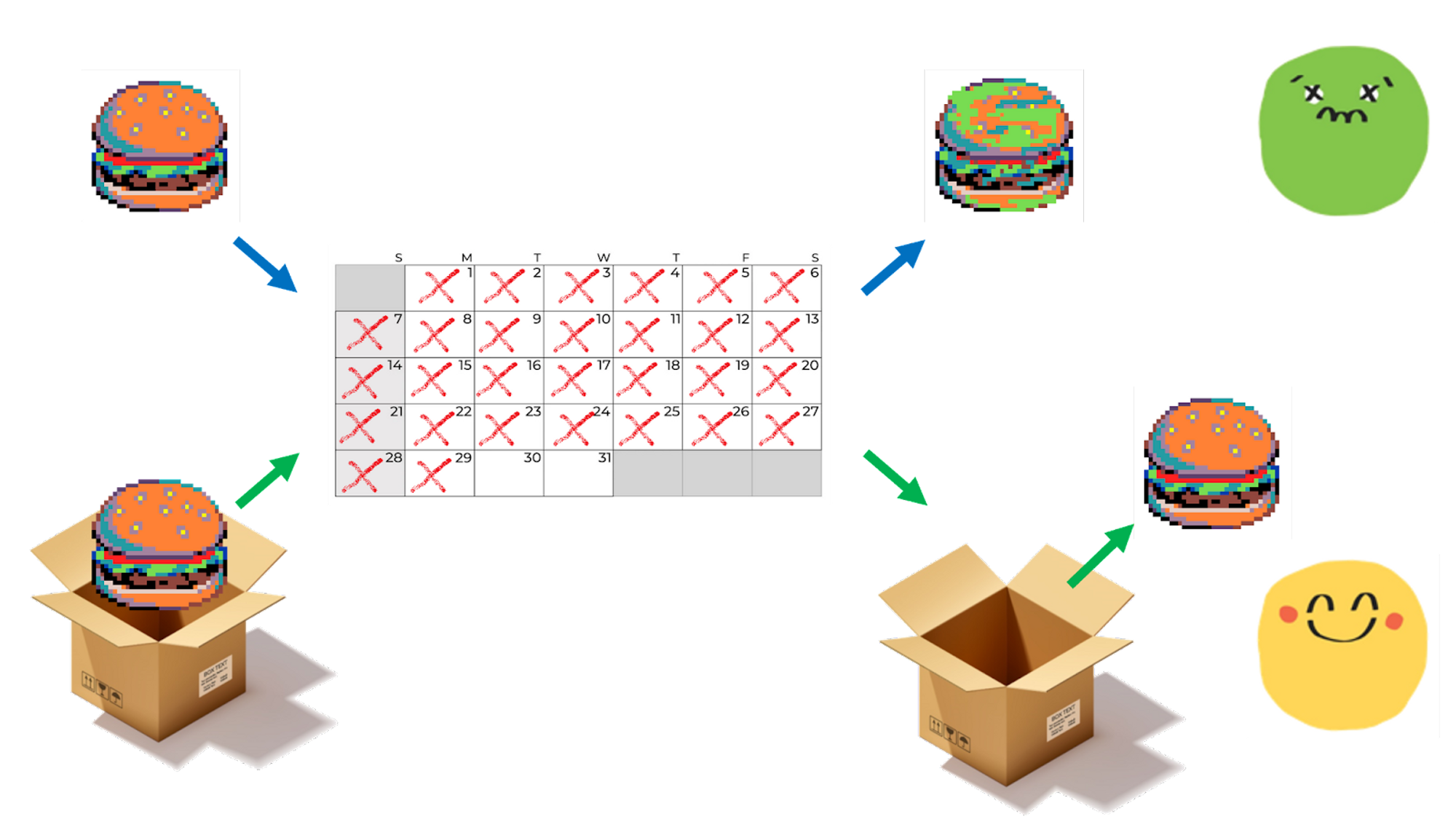
A “Variable” is a medium used to store data. You can imagine a variable as a box. This box can store any type of data. We can put the Orange Dinosaur inside, or we can put pizza or fried chicken in it. This “Variable” box can be passed around. The […]
We have sprites, atmosphere, art, and music. Now it’s time to learn a crucial programming concept: Variables. Those who have learned programming before are surely familiar with variables. If you haven’t, don’t worry! You have actually used them in previous units; you just didn’t realize they were “Variables.” Besides explaining […]
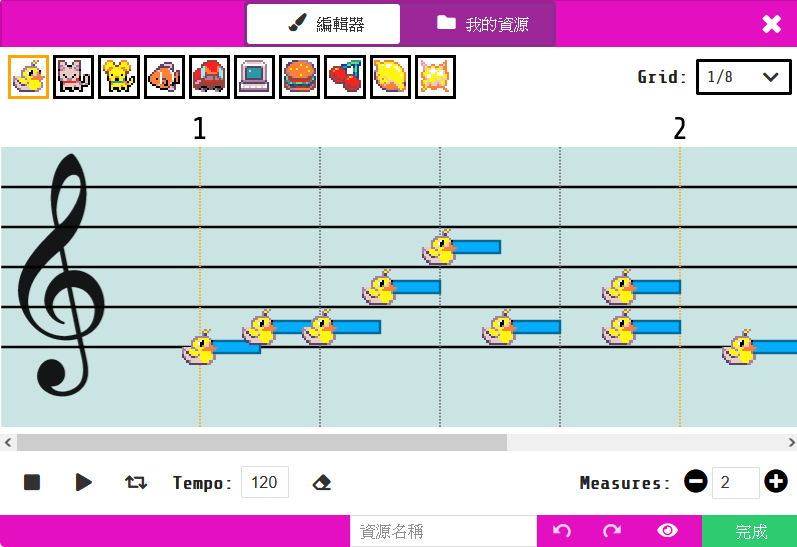
With a cool background in place, let’s try adding sound effects. In the Block Toolbox, there is a “Music” category. Besides the preset sound blocks, you can also customize your own sounds. Regarding built-in sounds, feel free to experiment with them. They are mainly divided into three playback modes: “Play” […]
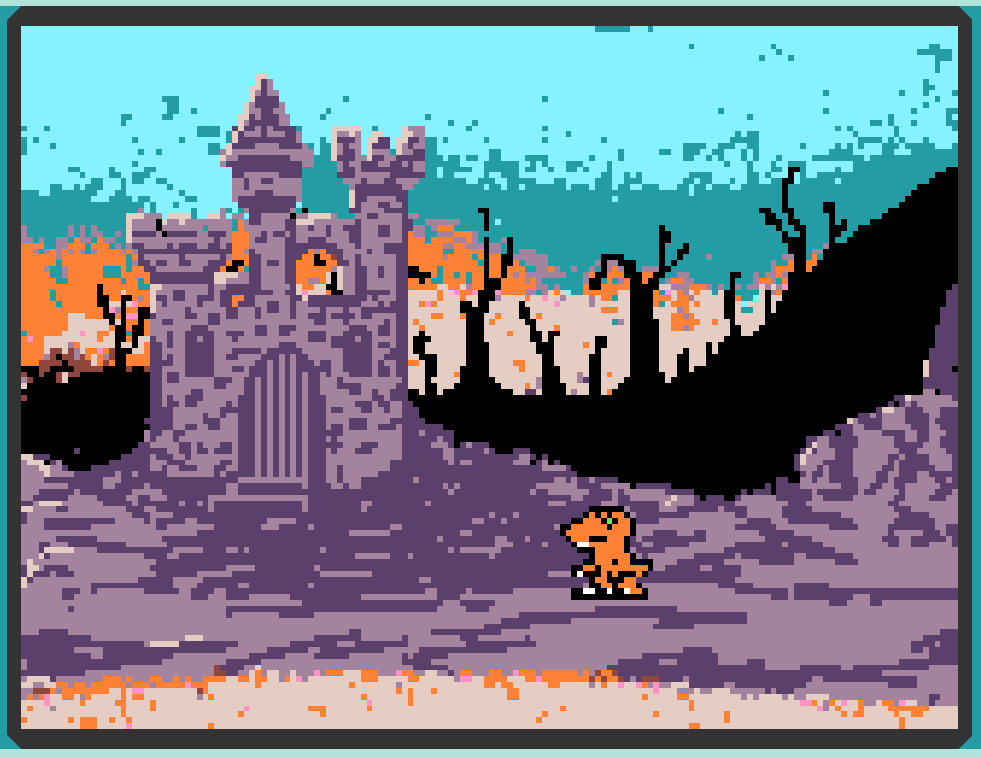
First, please enter MakeCode Arcade and open your project with your Sprite, as shown below: You can see a “Scene” category in the Block Toolbox. Click it to reveal many blocks related to scene settings in the list. First, let’s try the “set background color to ( )” block. Drag […]
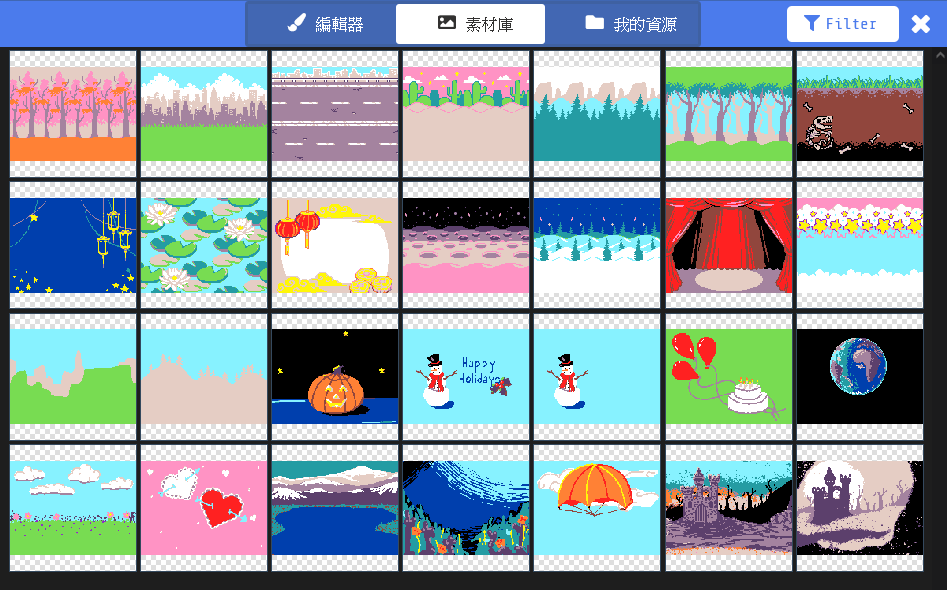
To design a simple game, you need Sprites, Game Goals, a Story, and Scenes. After studying the previous units, we can already design our own Sprites, use the controller to move them, and create prompts and dialog boxes. We have basically achieved the “Sprite” and “Story” elements, but we are […]