
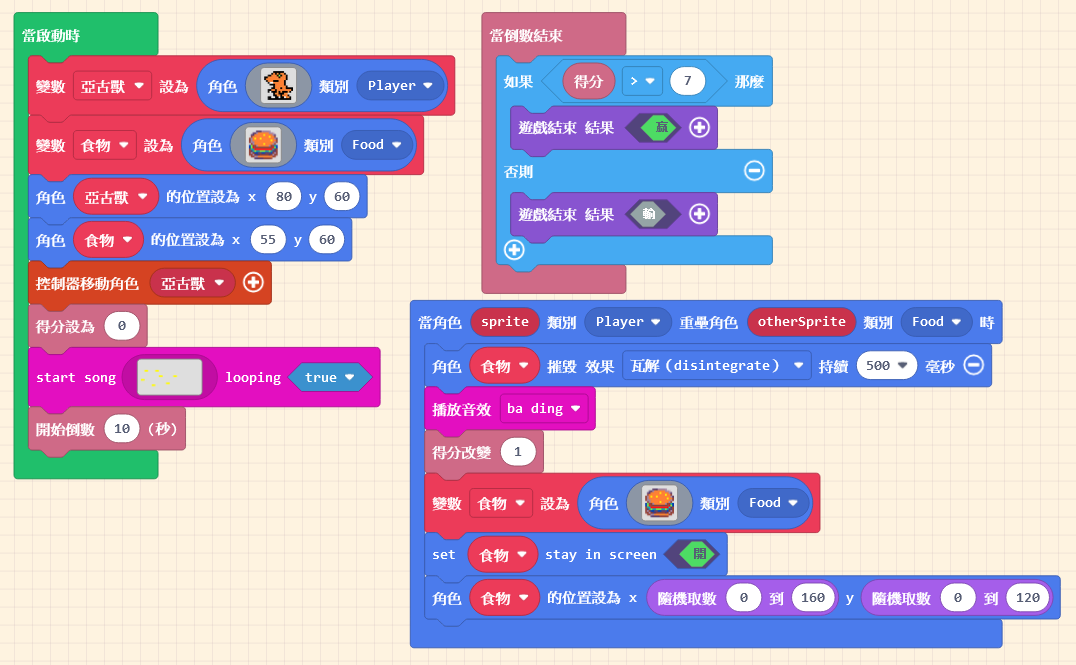
In the previous unit, we completed a game where the player must eat a specific number of burgers within a time limit to win. Actually, we can add more elements to enrich the game content. For instance, we can add a “charming villain” (an enemy)😈; if the player accidentally touches […]
Open Learning Content
45 posts

Since the “Burger” is gone after being eaten, we need it to reappear. The method is simple: just create another burger. Besides setting its position, remember to set its “Kind” correctly so it meets the “Overlap Conditions.” However, you will notice the burger always appears in a fixed spot. In […]
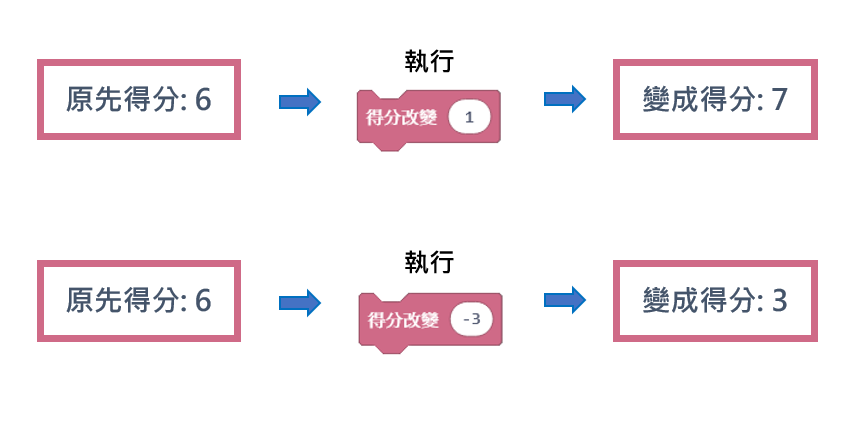
First, open your project from the previous unit. You should have two sprites, and when they overlap, the non-player sprite is destroyed. Taking the characters in the image as an example, our idea is: when the Burger is “destroyed“, we “gain points“. In MakeCode Arcade, a group of blocks is […]
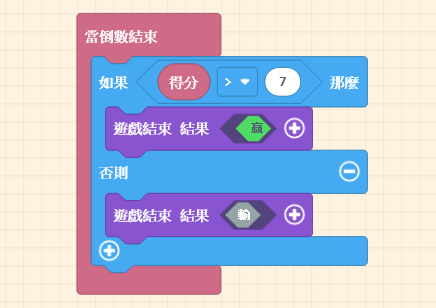
We are going to add conditions to determine victory or defeat, transforming the simple “Orange Dinosaur eats Burger” interaction into an exciting mini-game. For example, we can add a “Scoring Mechanism” where eating a burger adds a point, and the eaten burger “Randomly” respawns elsewhere. Or, we could add “bad […]
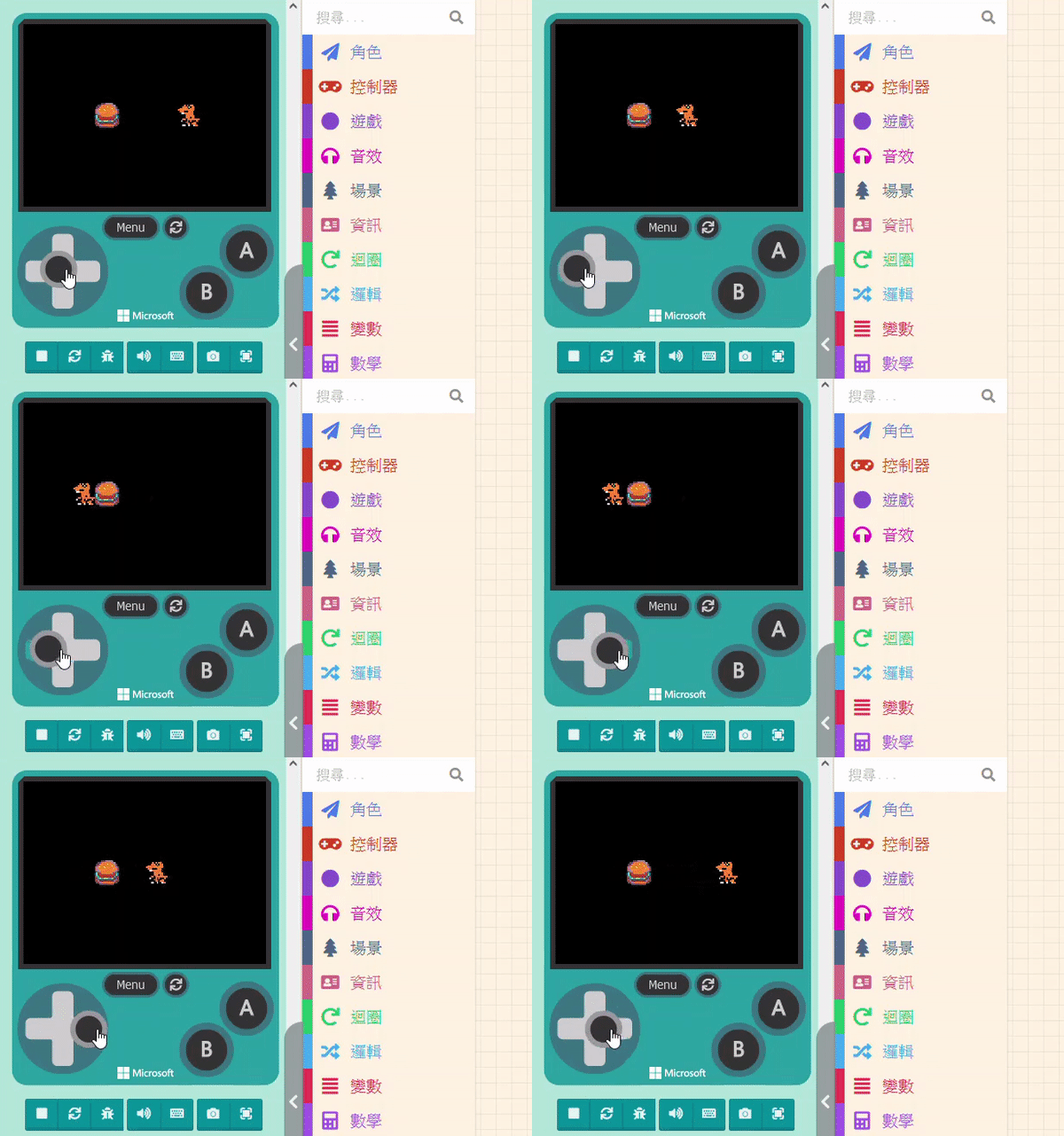
If we want the “Orange Dinosaur” to eat the “Burger“—meaning the Burger disappears when the Dinosaur “collides” with it—we need to use the concept of “Overlaps.” This allows us to program subsequent events when the images of two sprites overlap. Please click on “Sprites” in the Block Toolbox, scroll down […]
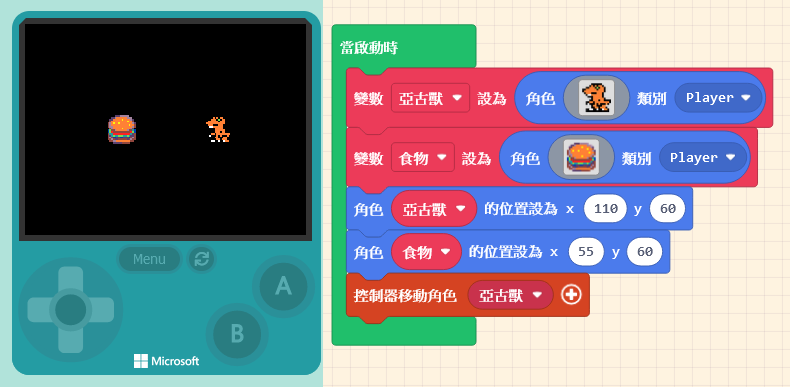
Next, let’s create a second sprite. Click on “Sprites” in the Block Toolbox, use the create sprite block, place it inside “on start,” and design its appearance (in this example, we selected a Burger from the Gallery). You will notice that the default “Variable Name” has changed automatically. The editor […]
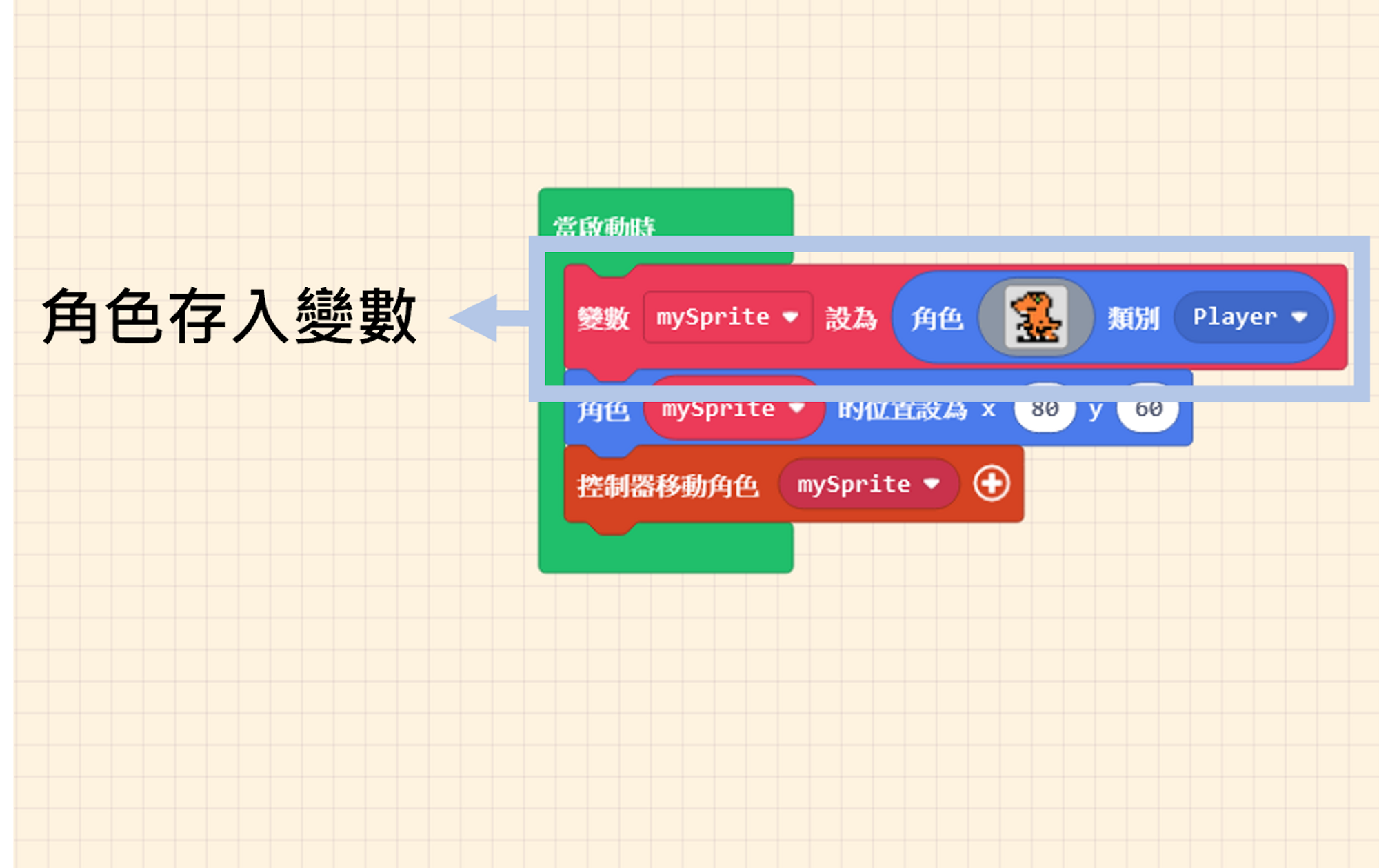
Let’s return to the code. During the sprite creation process, we placed our designed sprite into a “Variable.” Just like our understanding of the box metaphor: once the sprite is stored, the data won’t change unless we modify it. You can see that this variable has a name. To avoid […]
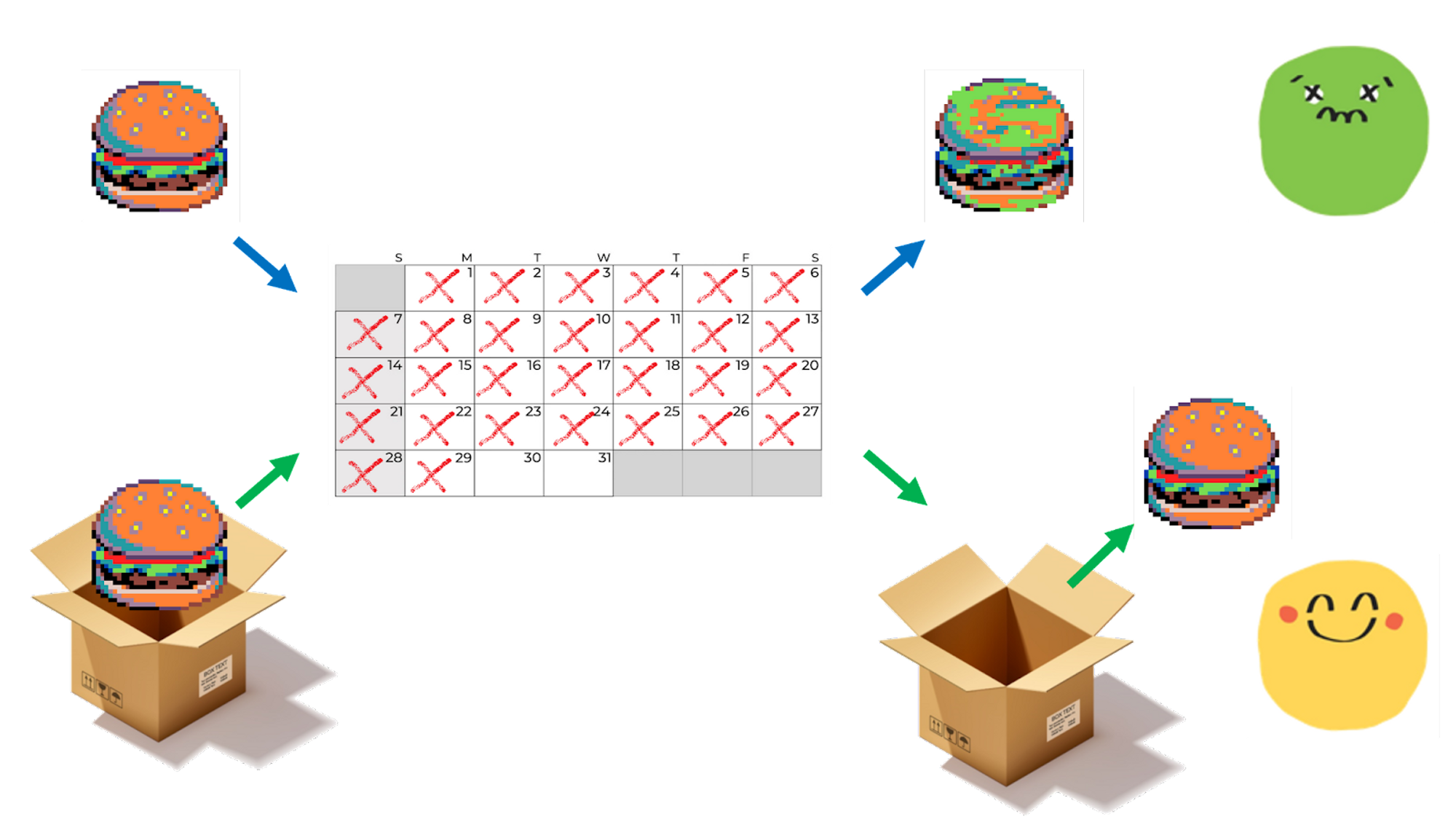
A “Variable” is a medium used to store data. You can imagine a variable as a box. This box can store any type of data. We can put the Orange Dinosaur inside, or we can put pizza or fried chicken in it. This “Variable” box can be passed around. The […]
We have sprites, atmosphere, art, and music. Now it’s time to learn a crucial programming concept: Variables. Those who have learned programming before are surely familiar with variables. If you haven’t, don’t worry! You have actually used them in previous units; you just didn’t realize they were “Variables.” Besides explaining […]