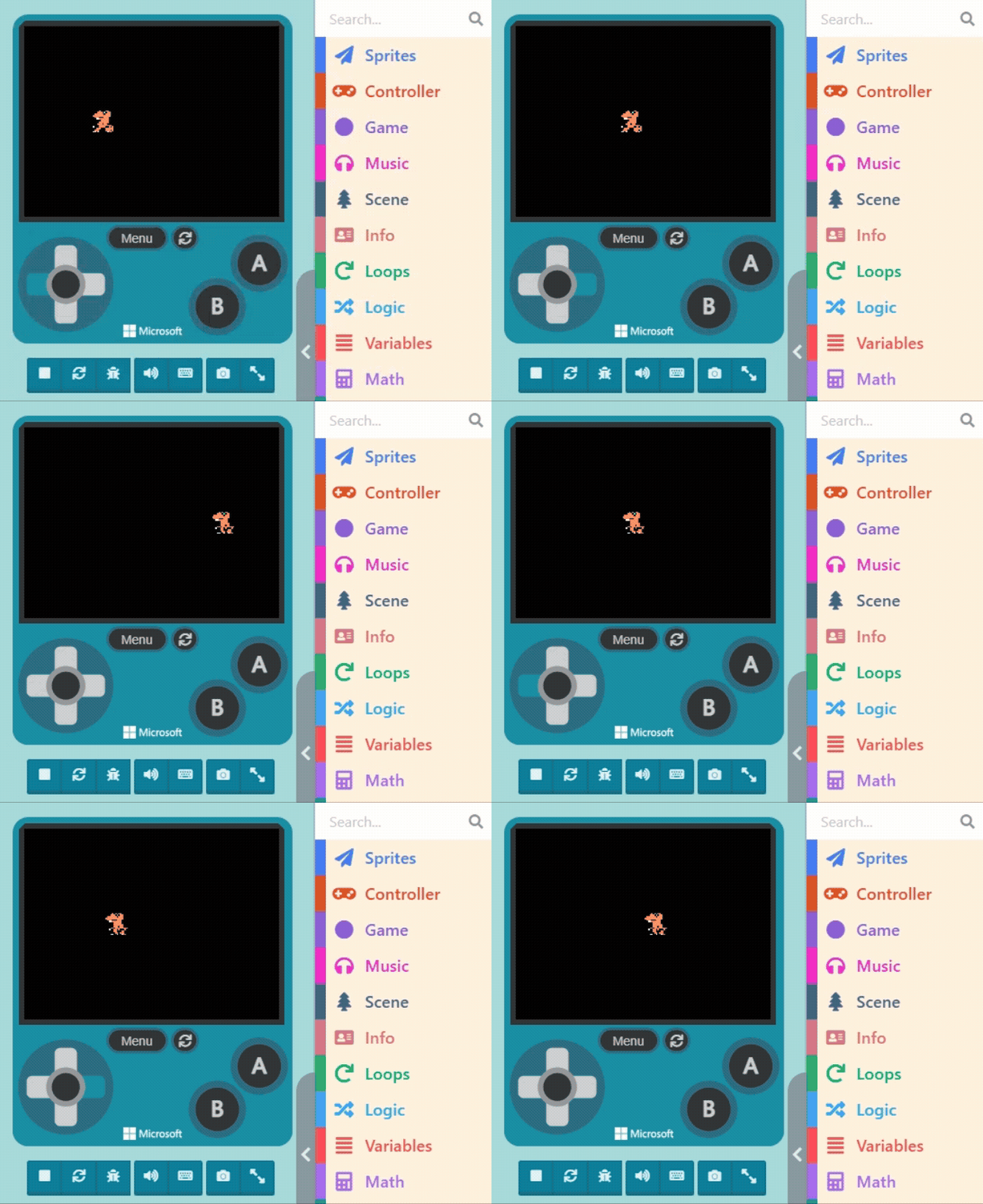
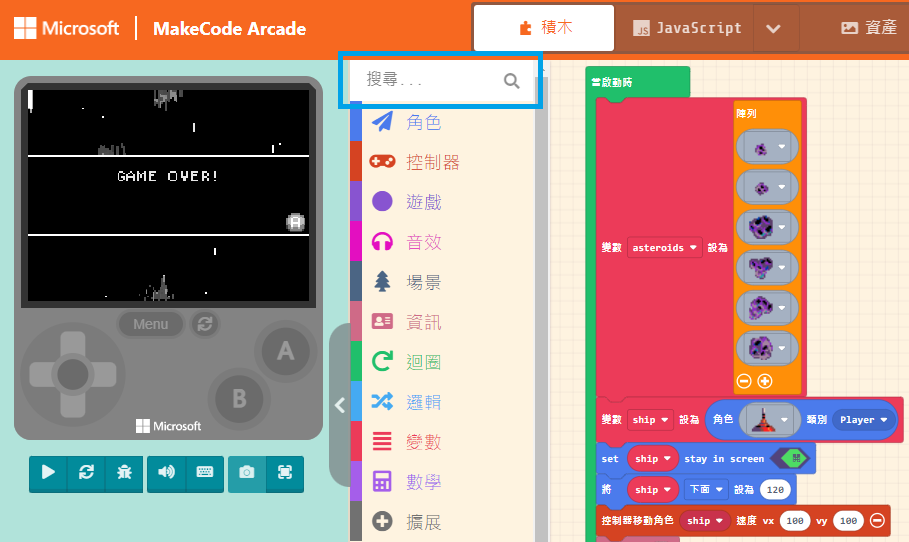
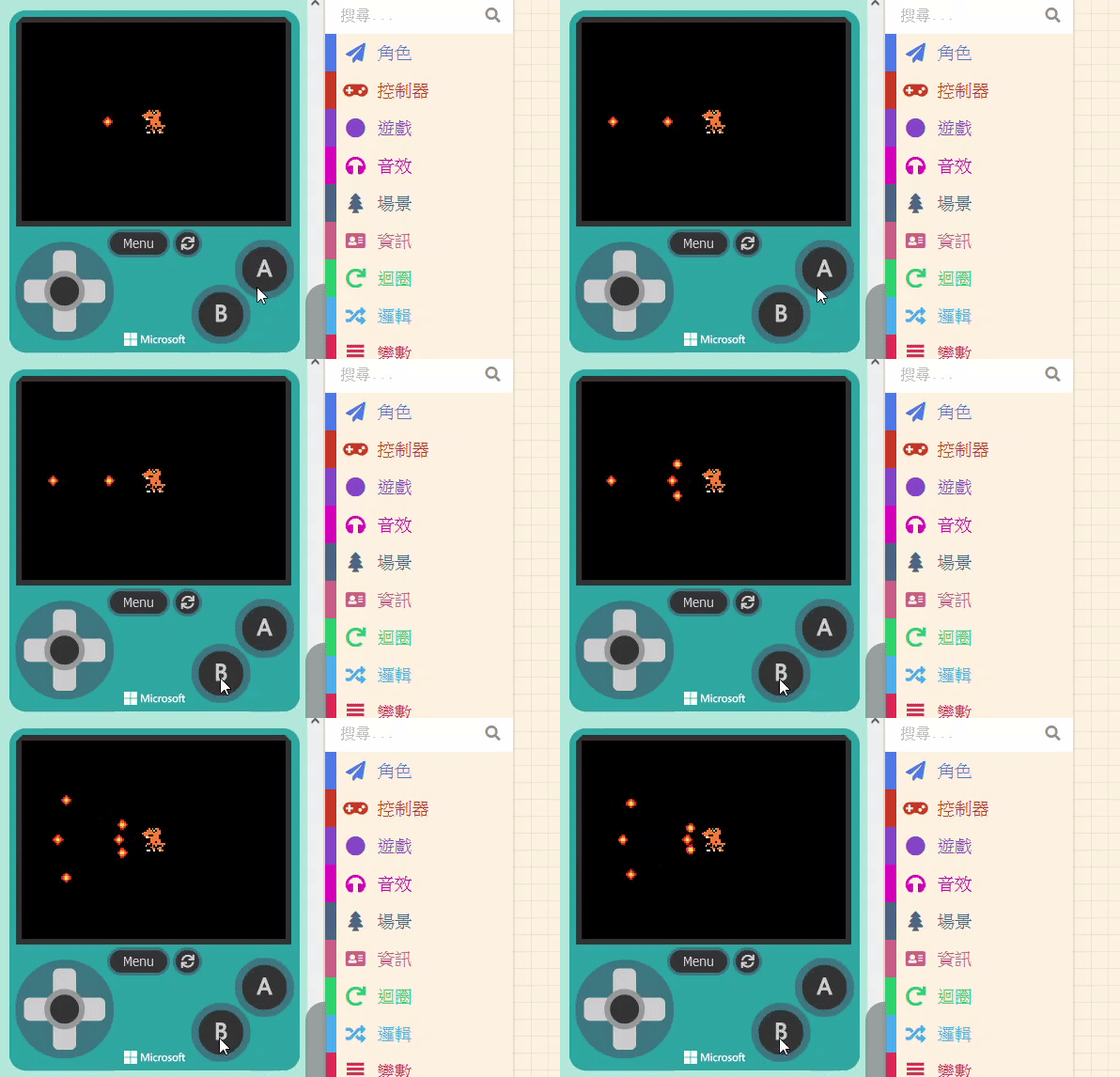
Currently, our character moves as a static image sliding around. We can make it more lively using blocks from the “Advanced” > “Animation” category.
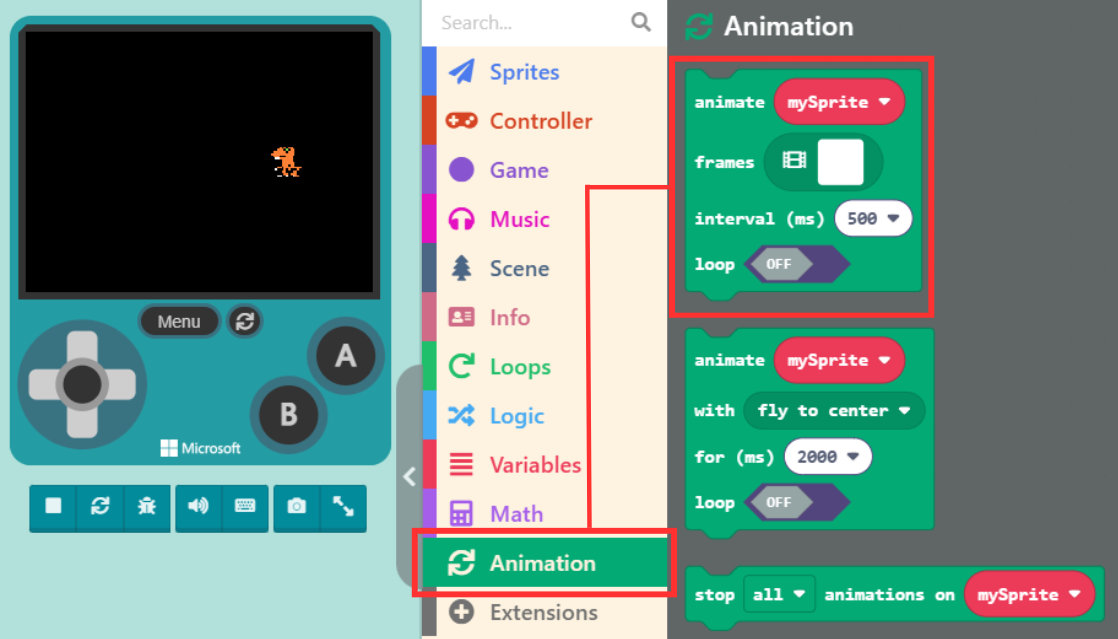
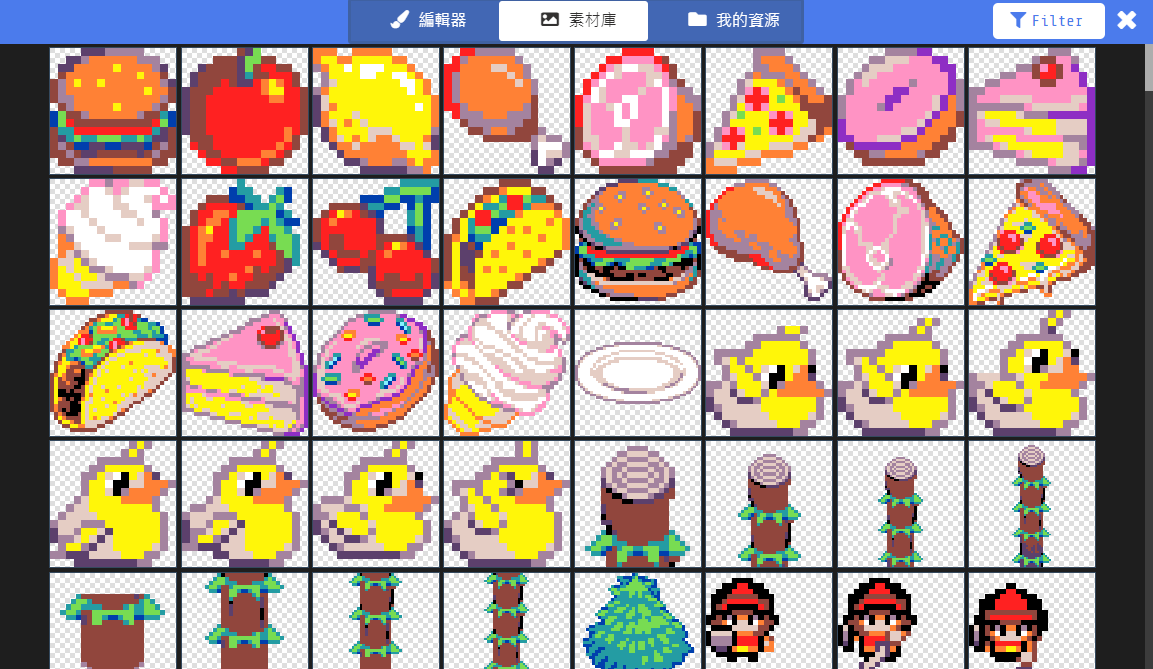
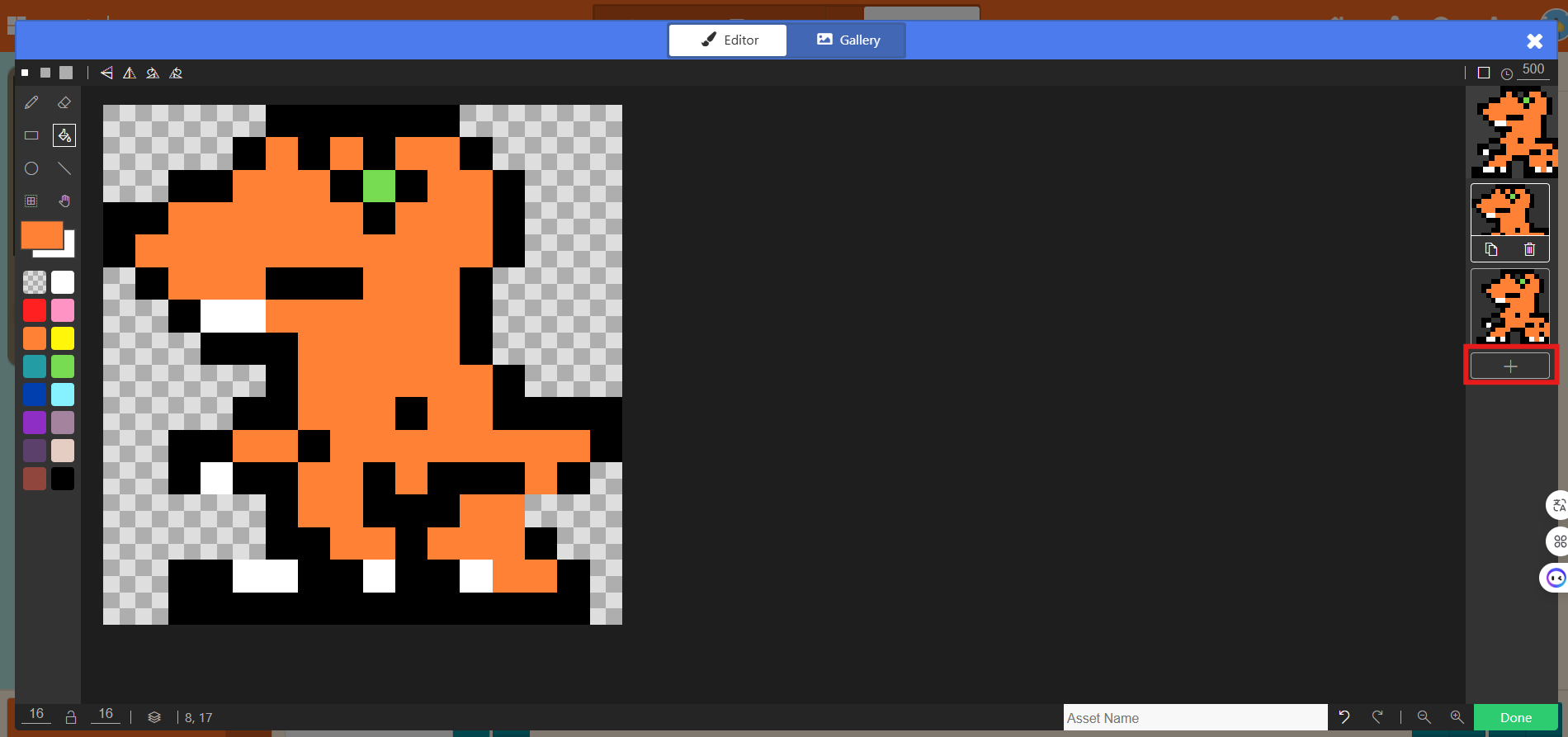
Click the “Frames” option in the block (the square icon) to add multiple images on the right side. We will piece these images together to create an animation. The more frames you have, the smoother it looks!
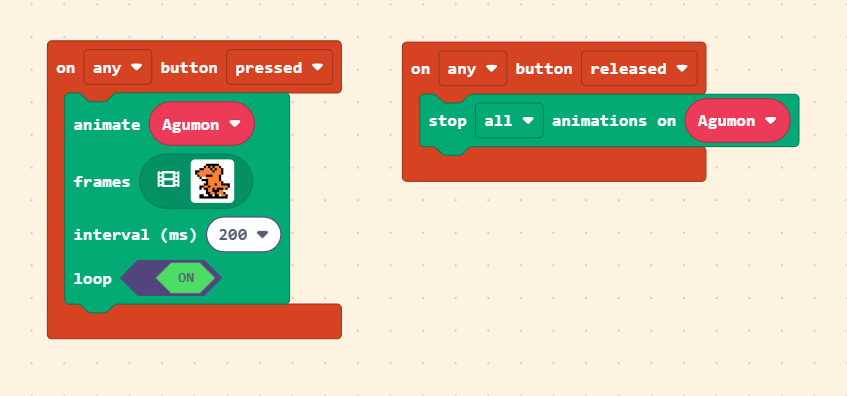
Since we want the character to animate when direction keys are pressed, we can change the “A” button to “Any” button in the dropdown menu. Place the animation block inside and turn “Loop” to “On.”
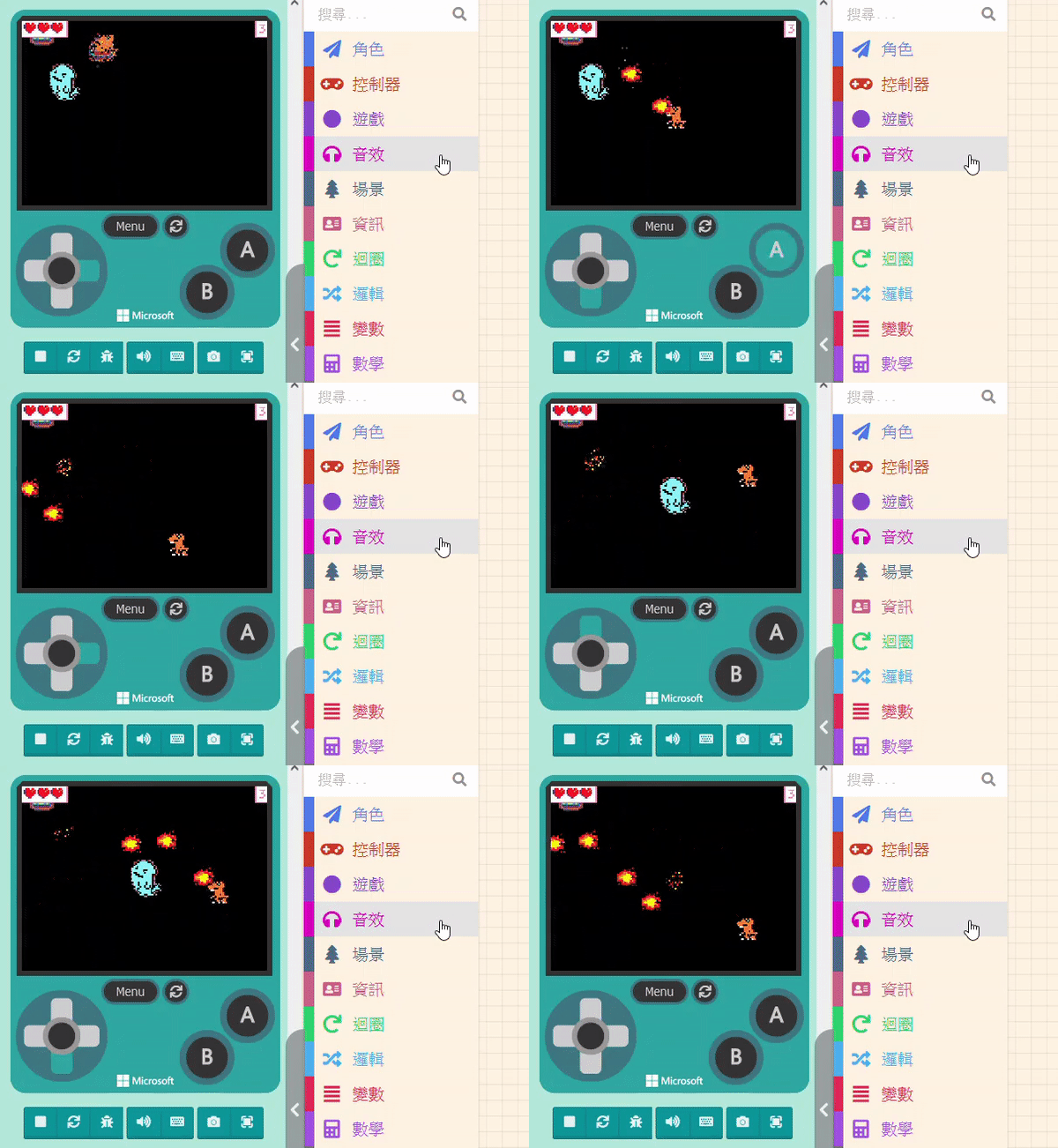
Now, the character will animate when moving. Don’t forget to add the action for when the button is “Released.” There is a “stop [all] animations on [mySprite]” block in the “Animation” category; use this to stop the animation when you are not moving.
Doesn’t it look much more lively now? (´ω)人(´ω)