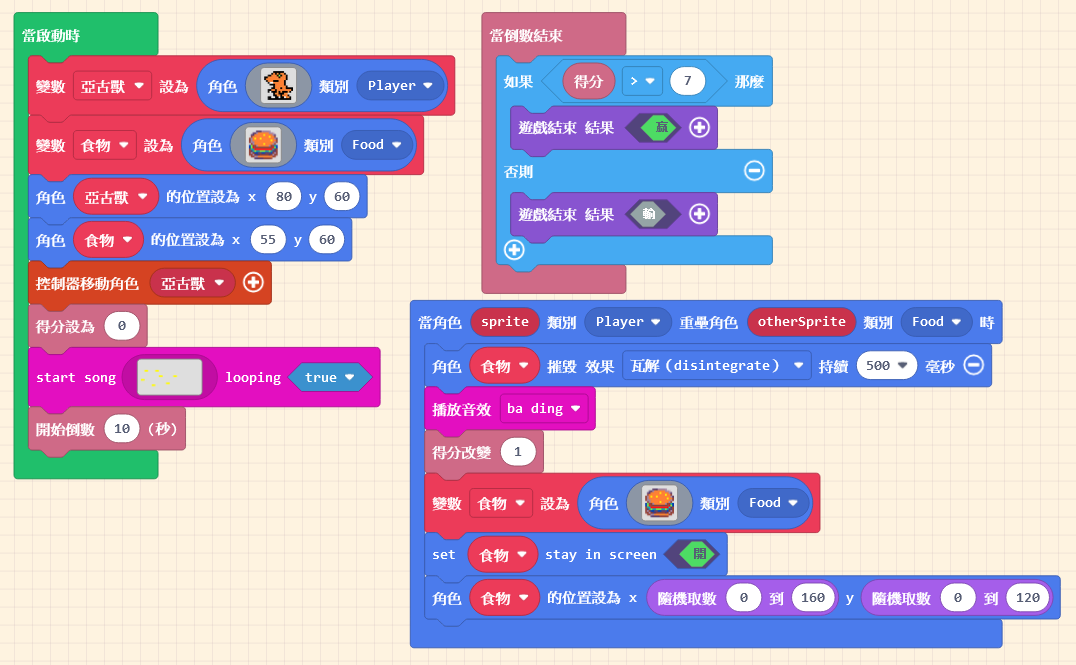
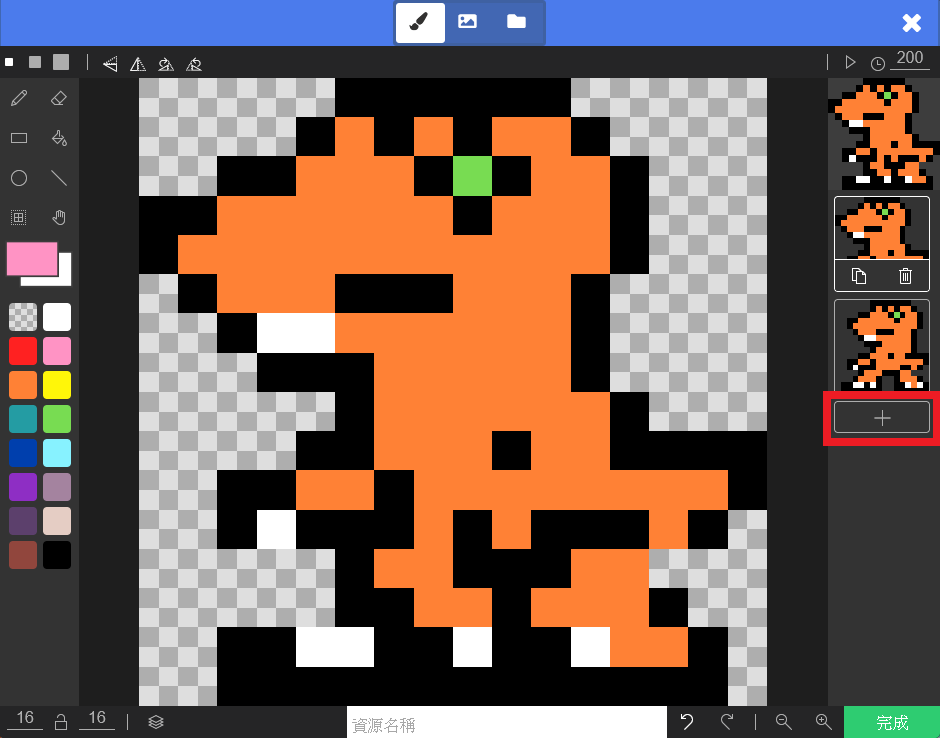
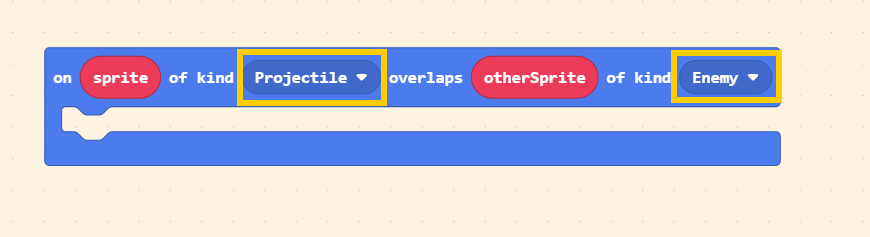
Next, let’s design the action for when the “Small Flame” hits the villain. We use the “Overlaps” block again. Set the Kinds to “Projectile” and “Enemy.”
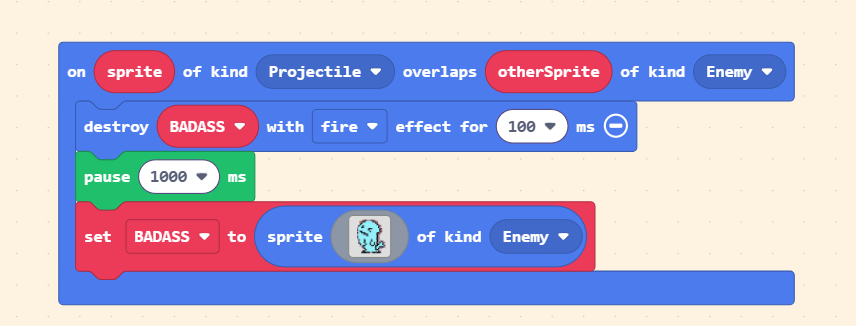
When the target is hit, we want the villain to be destroyed and show a special effect. It is recommended to keep the effect duration short; otherwise, the screen will look chaotic.
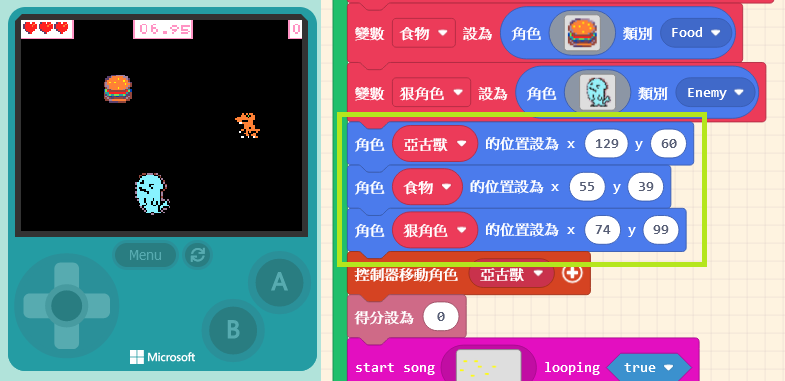
Since the villain disappears after being destroyed, we need to create a new one. You can directly Copy the blocks used to create the villain inside the “on start” block and Paste them here.
To prevent the villain from reappearing too quickly, add a “pause” block between the destruction and the creation steps. You can set the pause duration as you like.
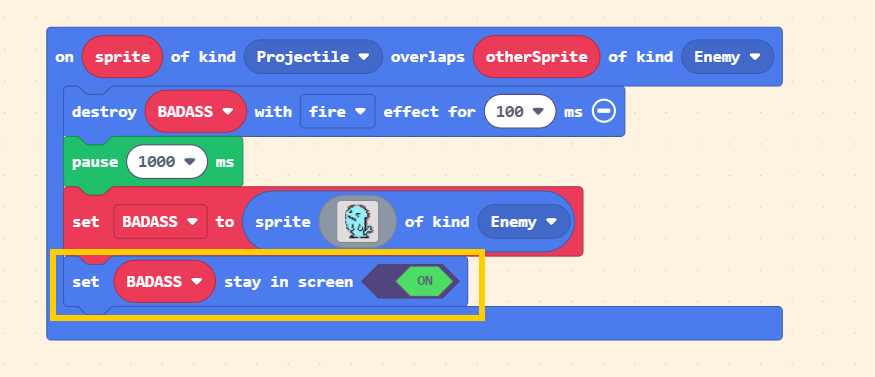
Finally, don’t forget to add the “set [myEnemy] stay in screen <ON>” block for the newly created villain! This prevents it from spawning outside the screen or getting cut off by the border.
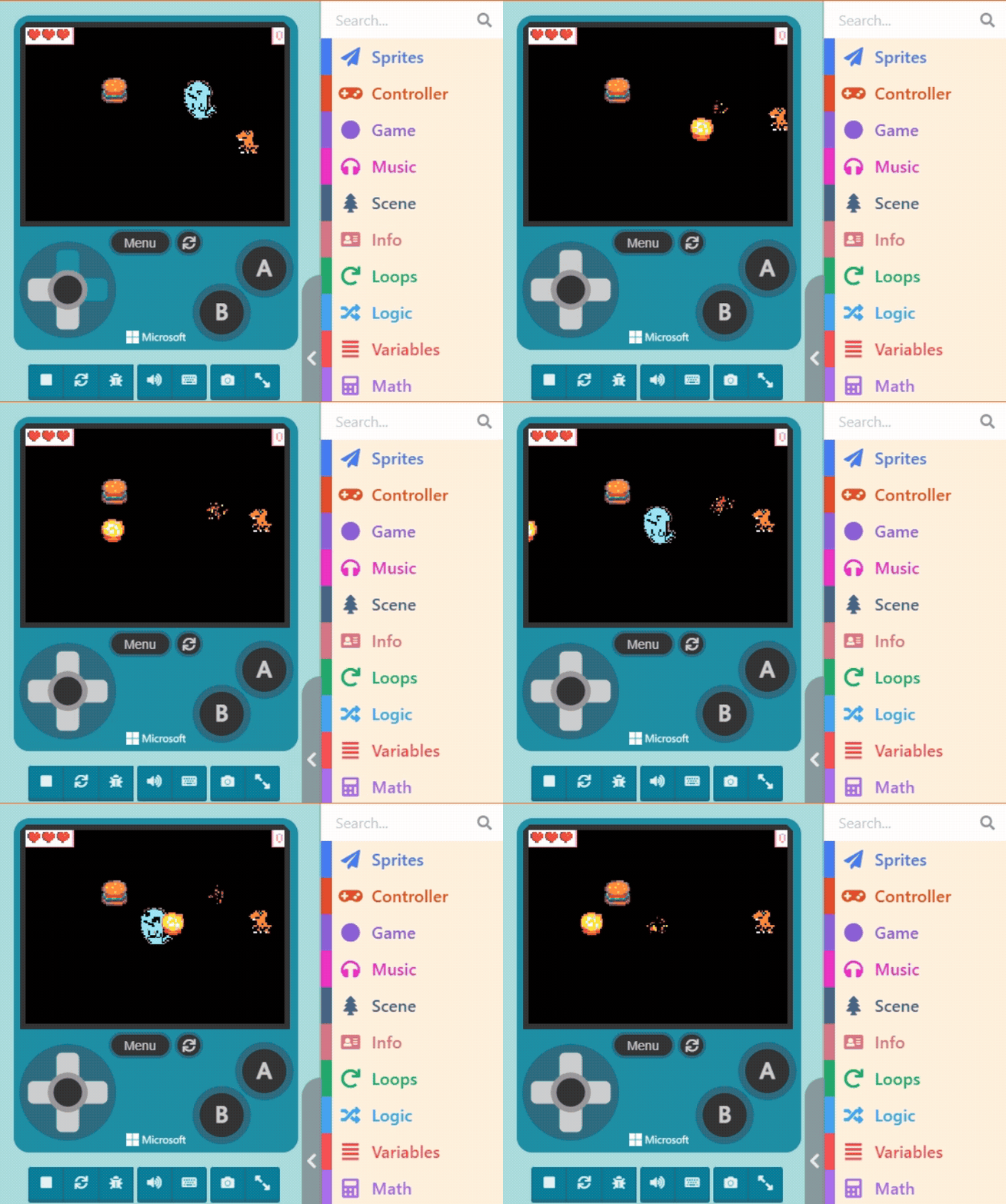
Once finished, test it in the Game Simulator to see if everything works correctly.