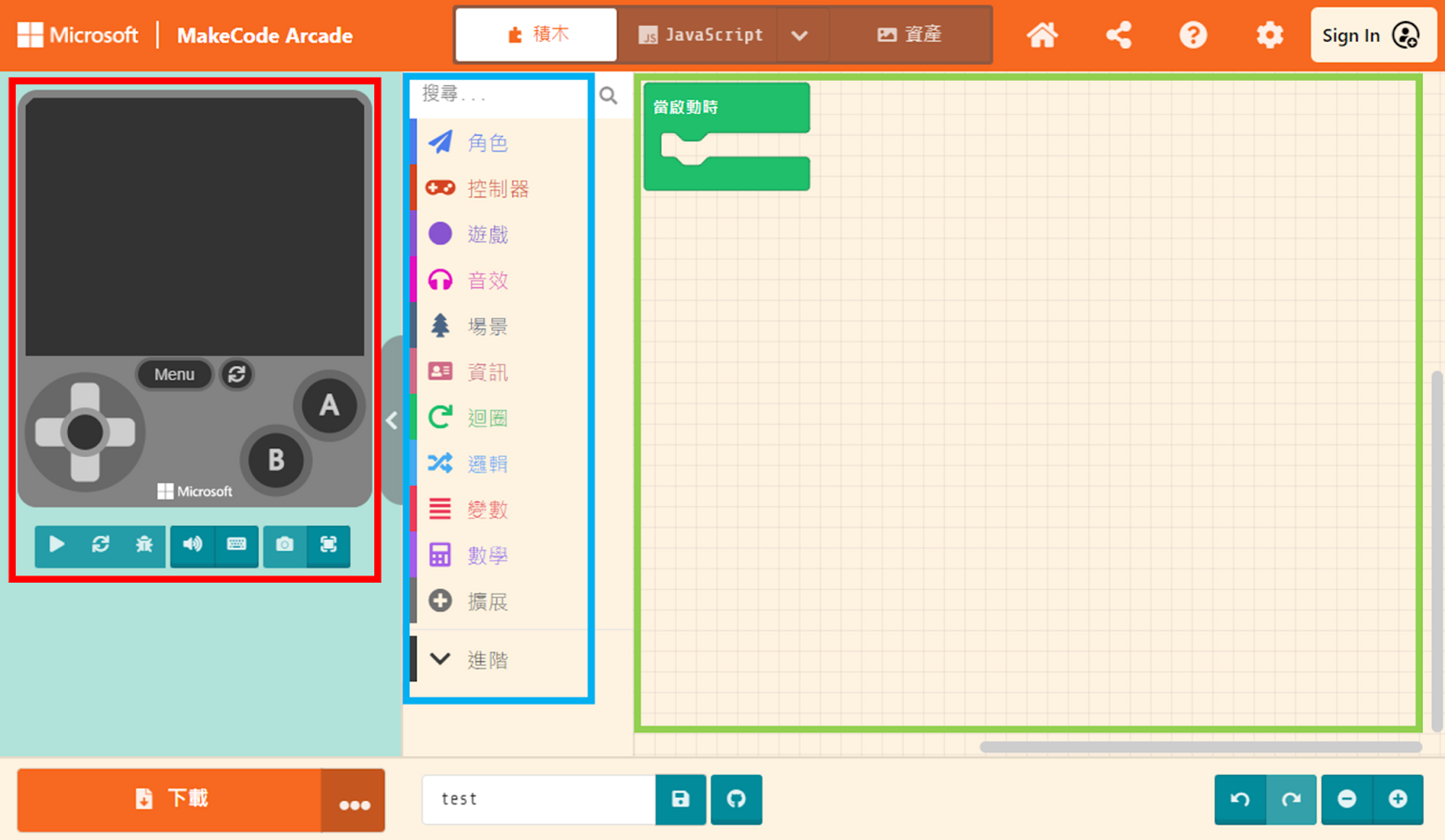
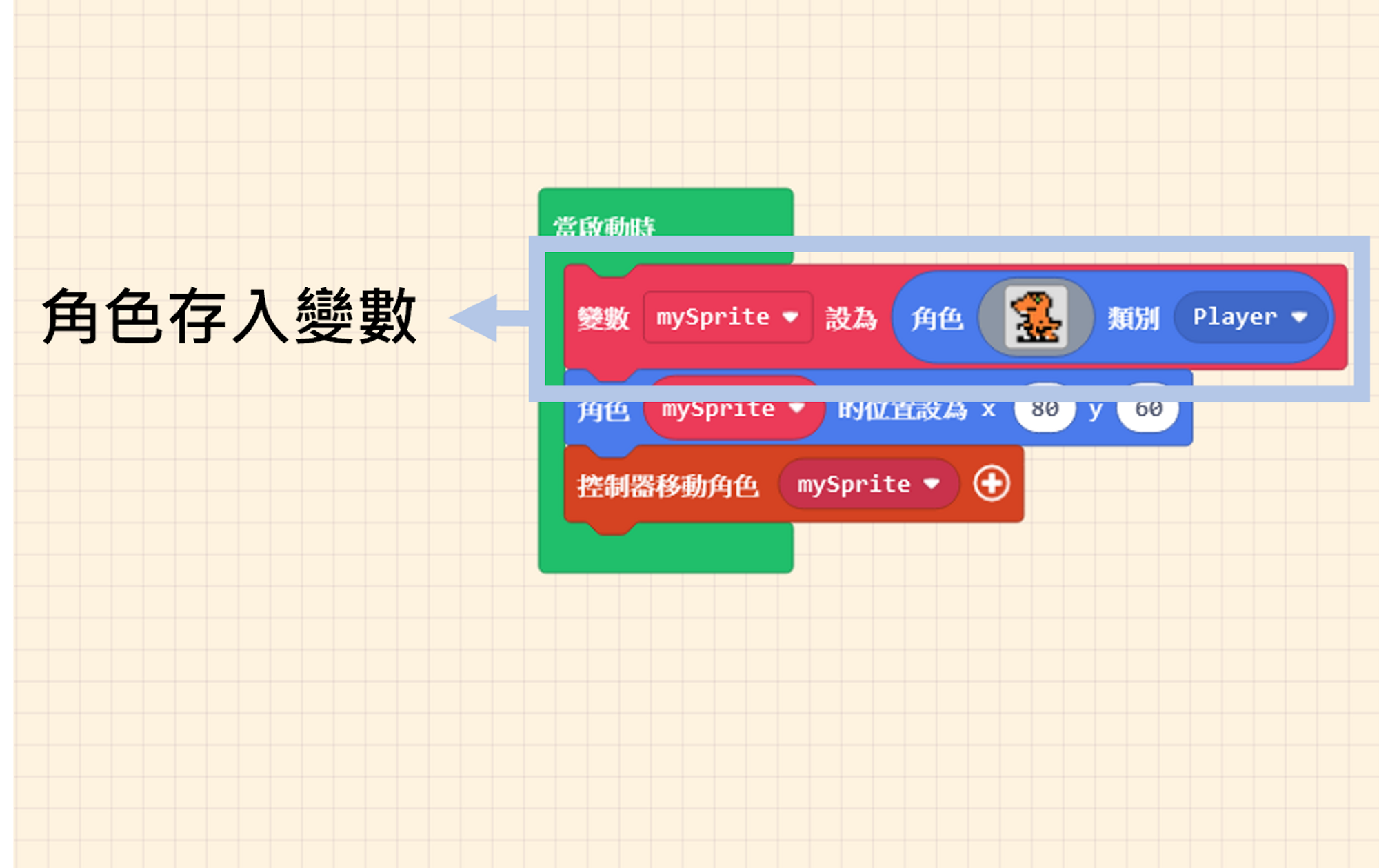
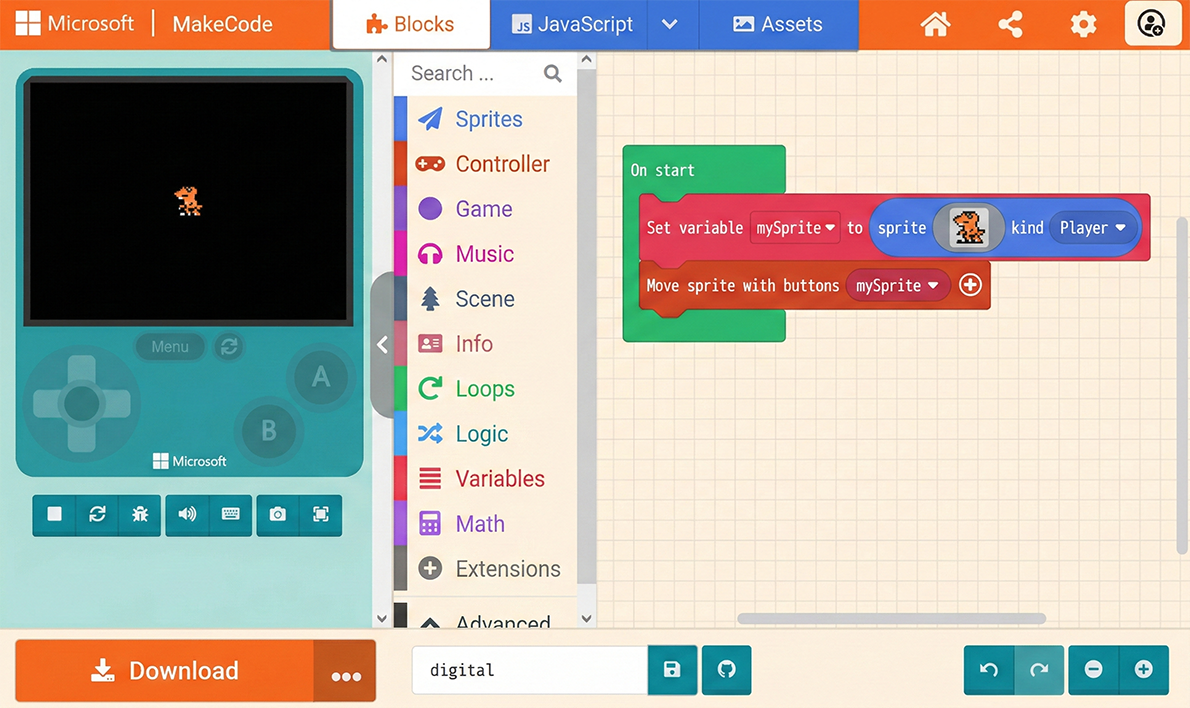
First, please enter MakeCode Arcade and open your project with your Sprite, as shown below:
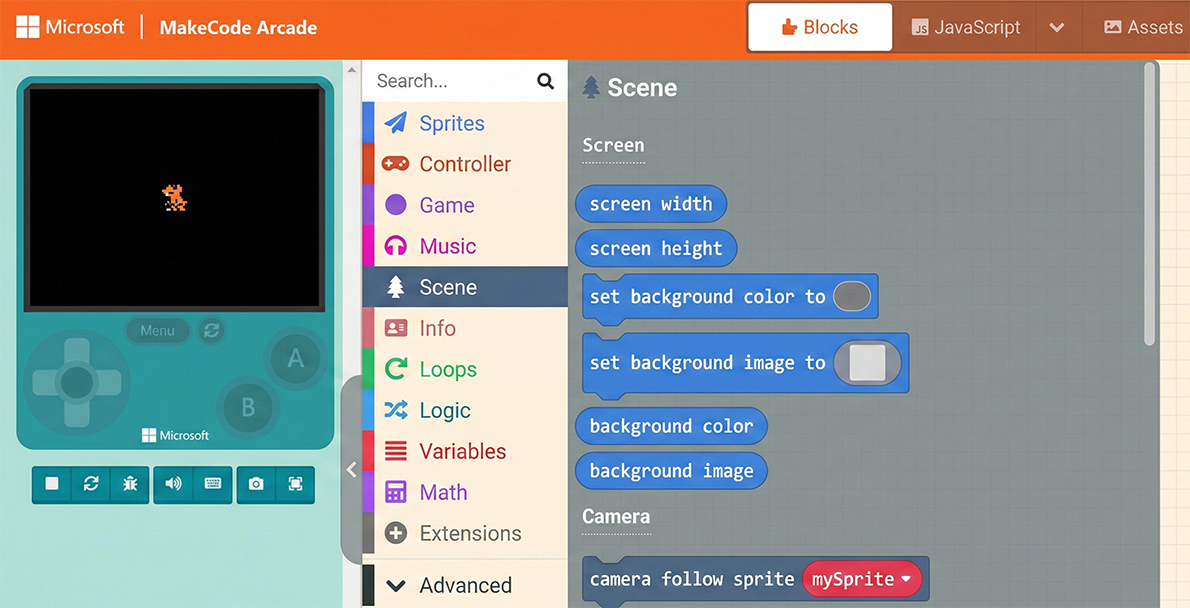
You can see a “Scene” category in the Block Toolbox. Click it to reveal many blocks related to scene settings in the list.
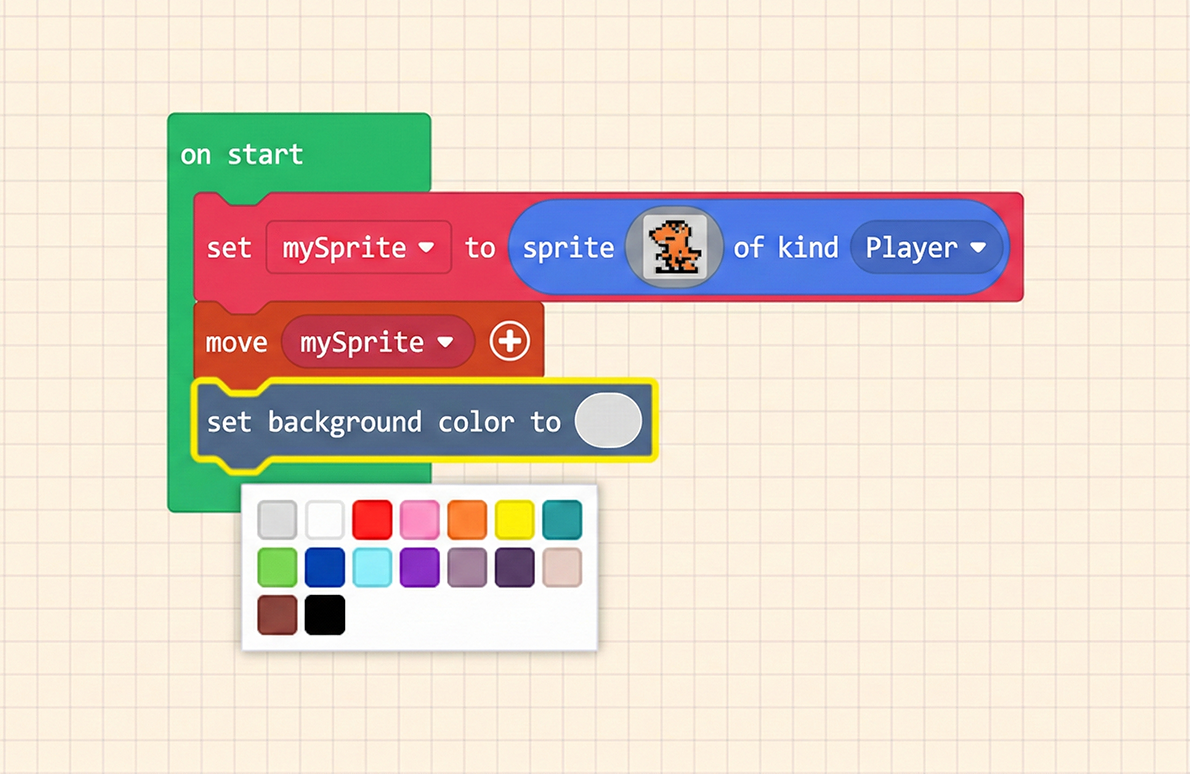
First, let’s try the “set background color to ( )” block. Drag it into the “on start” block. Clicking the color box at the end of the block opens the Color Palette.
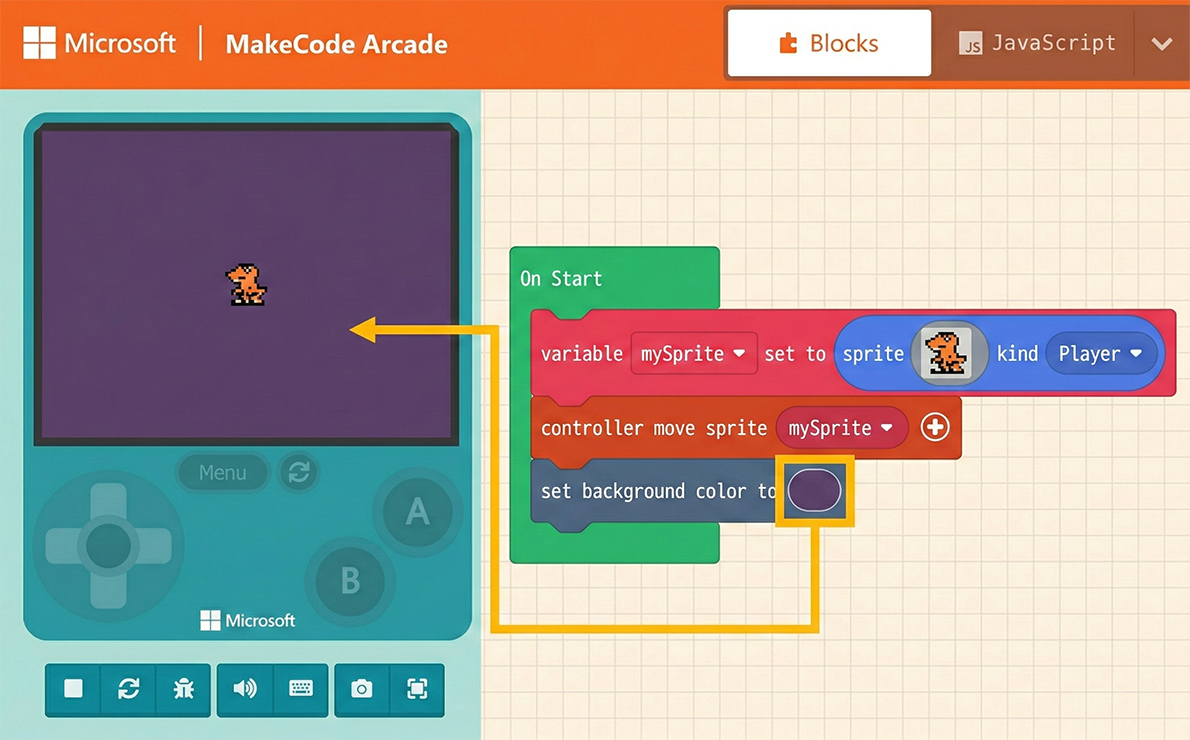
The “set background color to ( )” block is quite simple; it quickly changes the background to a single color. This is suitable for occasions where you need to highlight the Sprite, or for scenes with many characters and items, where a simple background prevents the screen from looking too cluttered.
However, we often need rich backgrounds to create the game’s atmosphere, so we need to draw them ourselves. Inside the “Scene” list, you can find the “set background image to ( )” block.
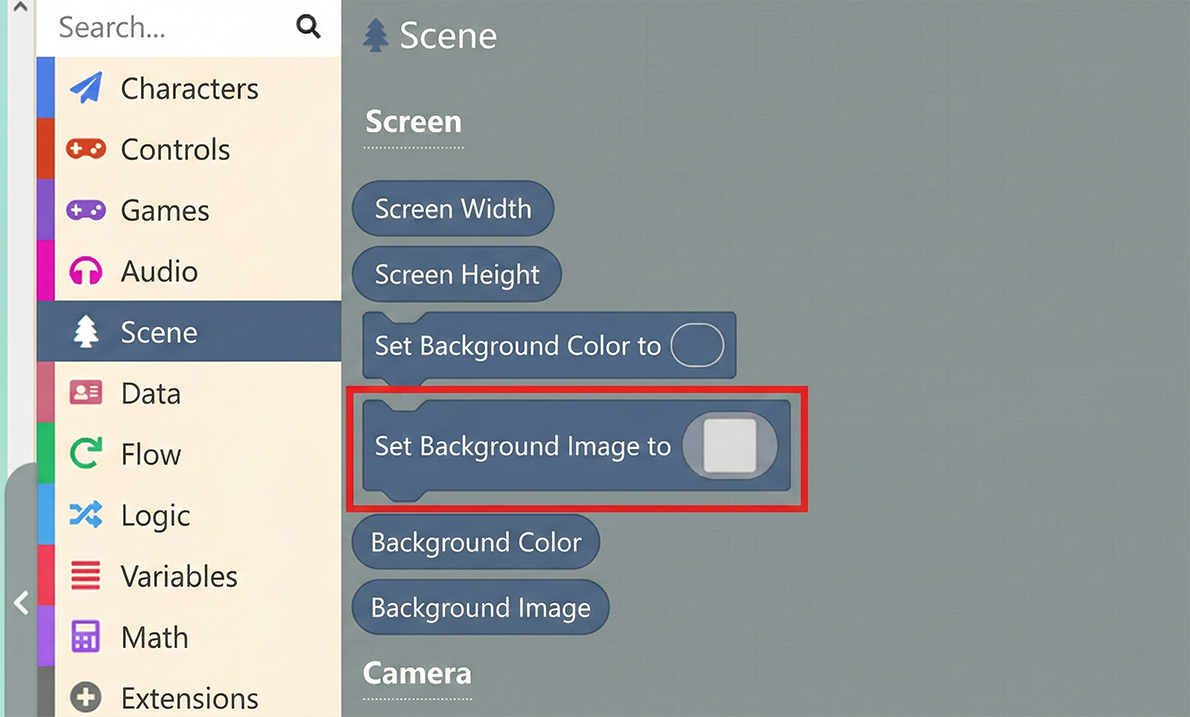
Let’s replace the previous “set background color” block with the “set background image to ( )” block. Clicking the box at the end opens the familiar editor. Just like designing Sprites, we can use these tools to draw backgrounds.
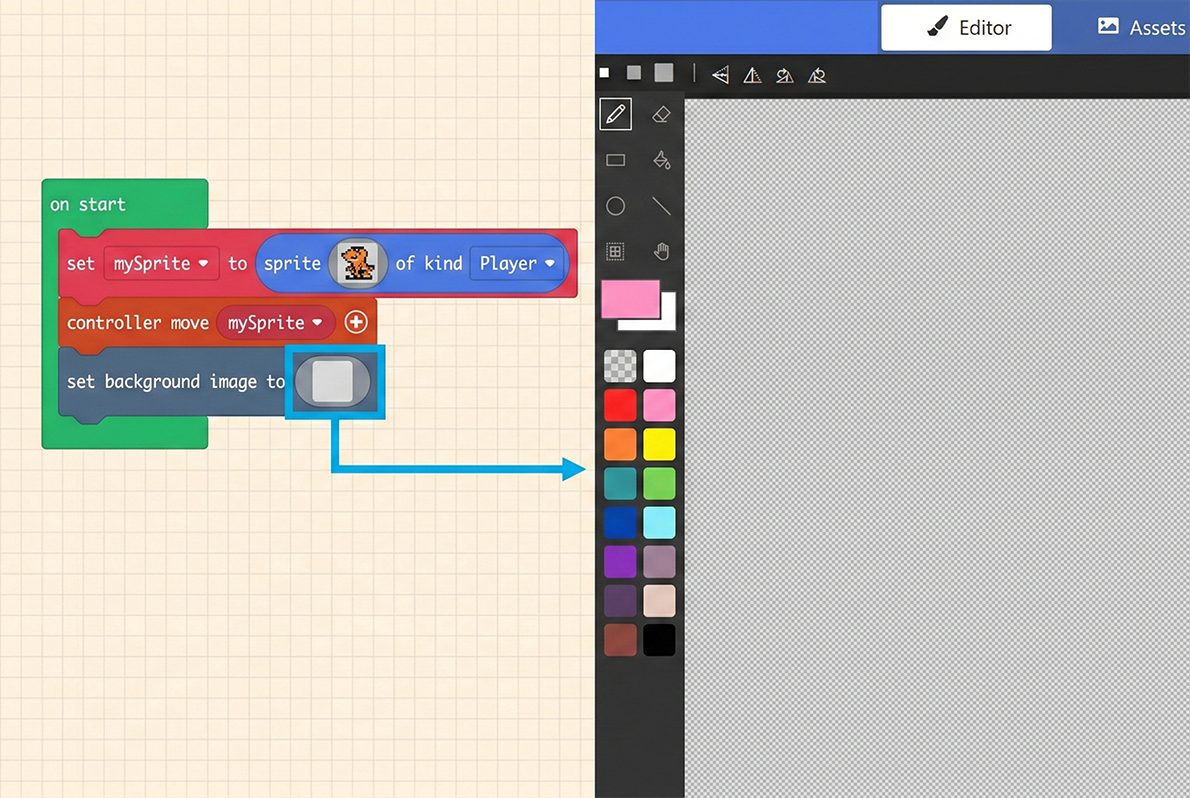
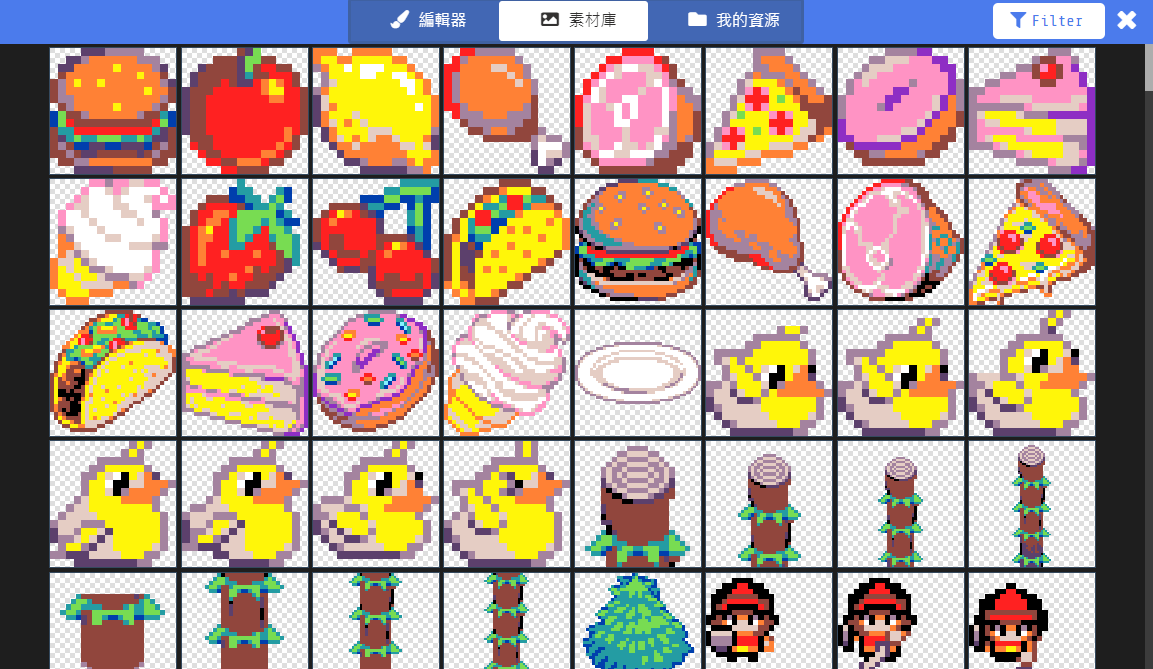
The background drawing interface also has a “Gallery” to choose from, or you can draw the background yourself.😝
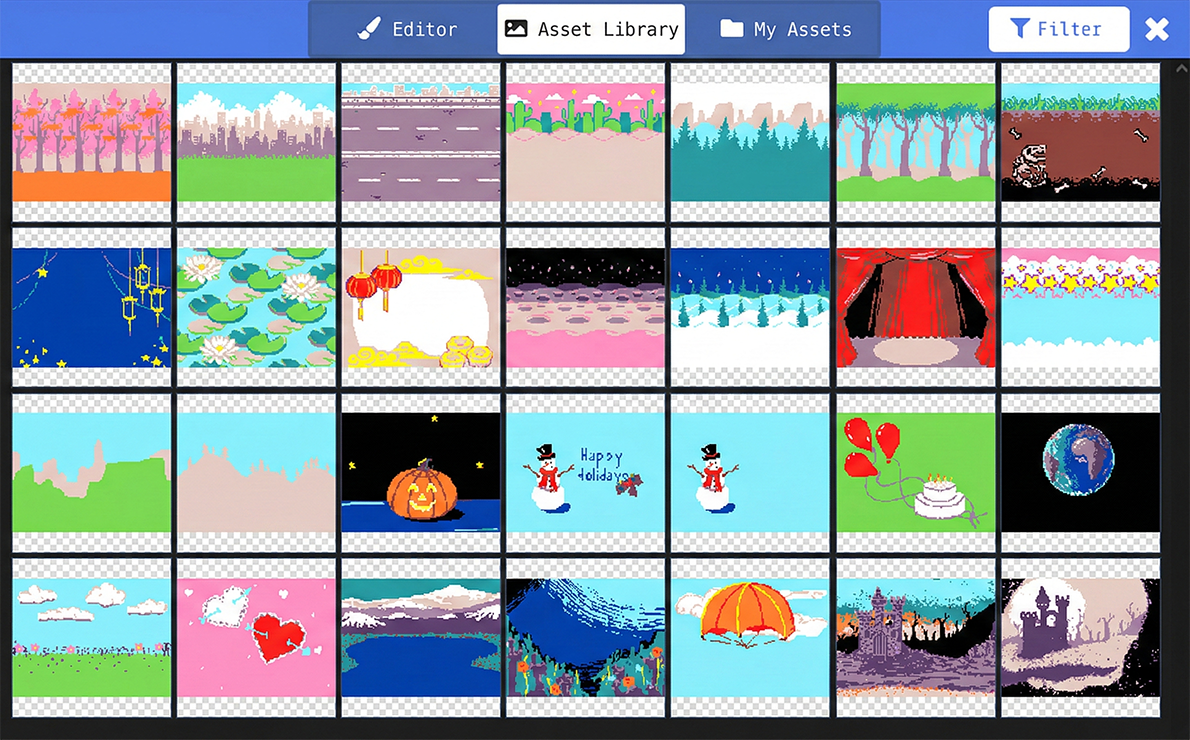
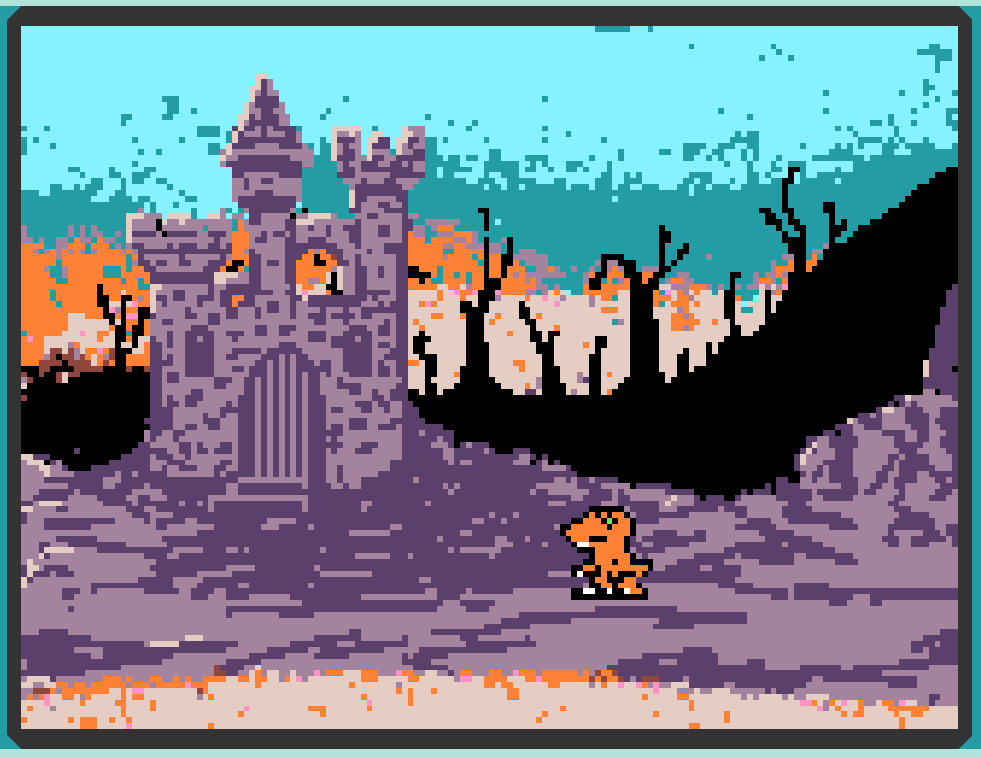
Some background assets or hand-drawn backgrounds might have concepts of height or depth. For example, in the image below, the scene is outside a spooky castle. The orange dinosaur seems to be standing in a strange position, as if floating in mid-air. In this case, we need to adjust the Sprite’s position to match the background layout.
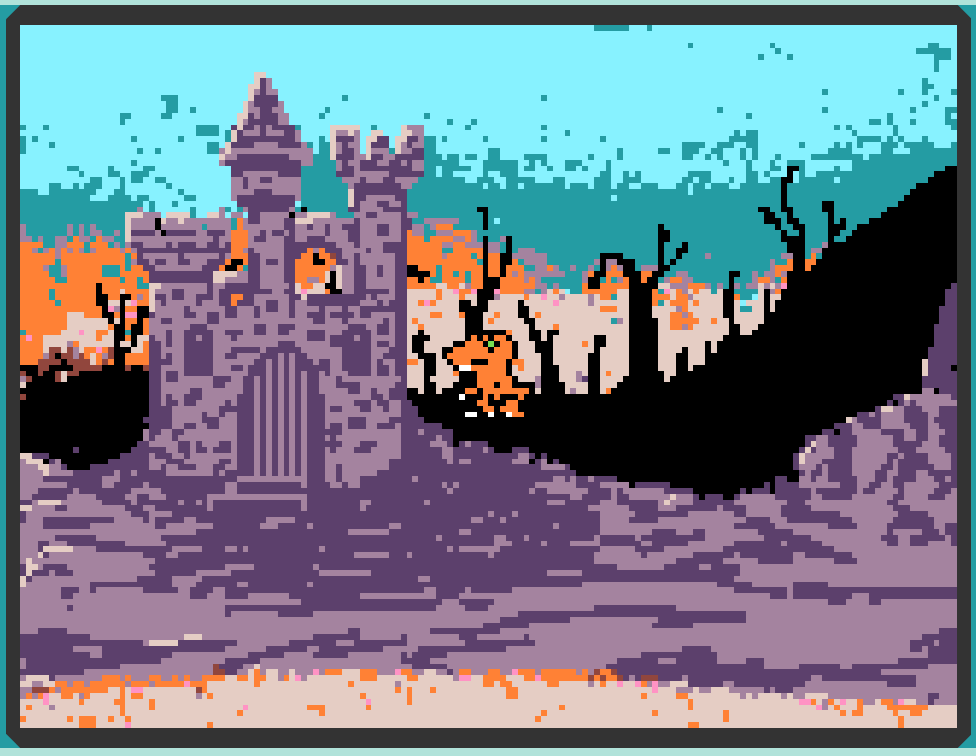
Let’s look at how big the game screen is and how the coordinates are configured.
The screen size is 160 x 120 pixels. The top-left corner coordinate is (0, 0), and the bottom-right corner is (160, 120). This means our orange dinosaur is currently at the center coordinate (80, 60).
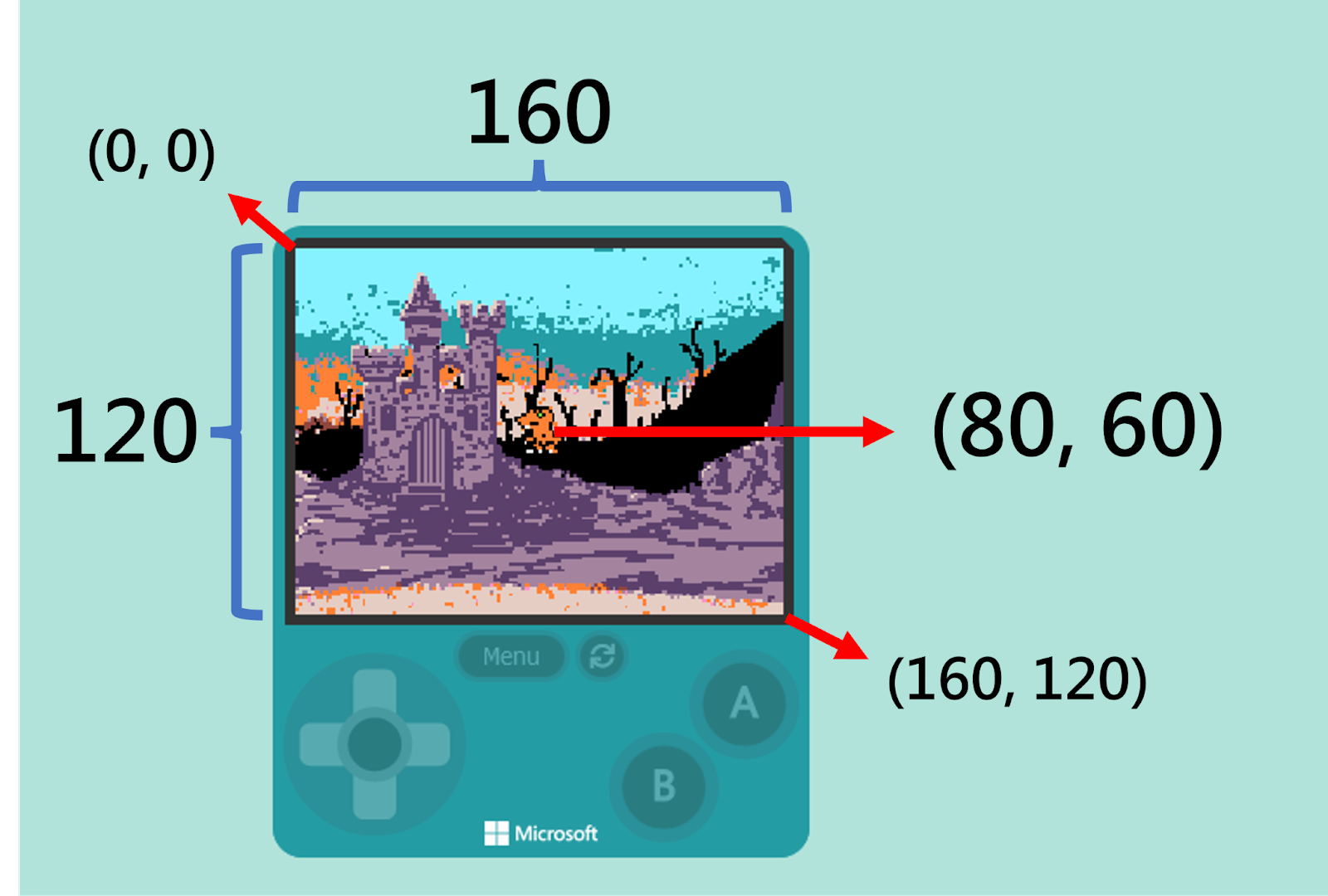
Once we understand the coordinate configuration, we can find the “set [mySprite] position to x ( 0 ) y ( 0 )” block under the “Sprites” category in the Block Toolbox.
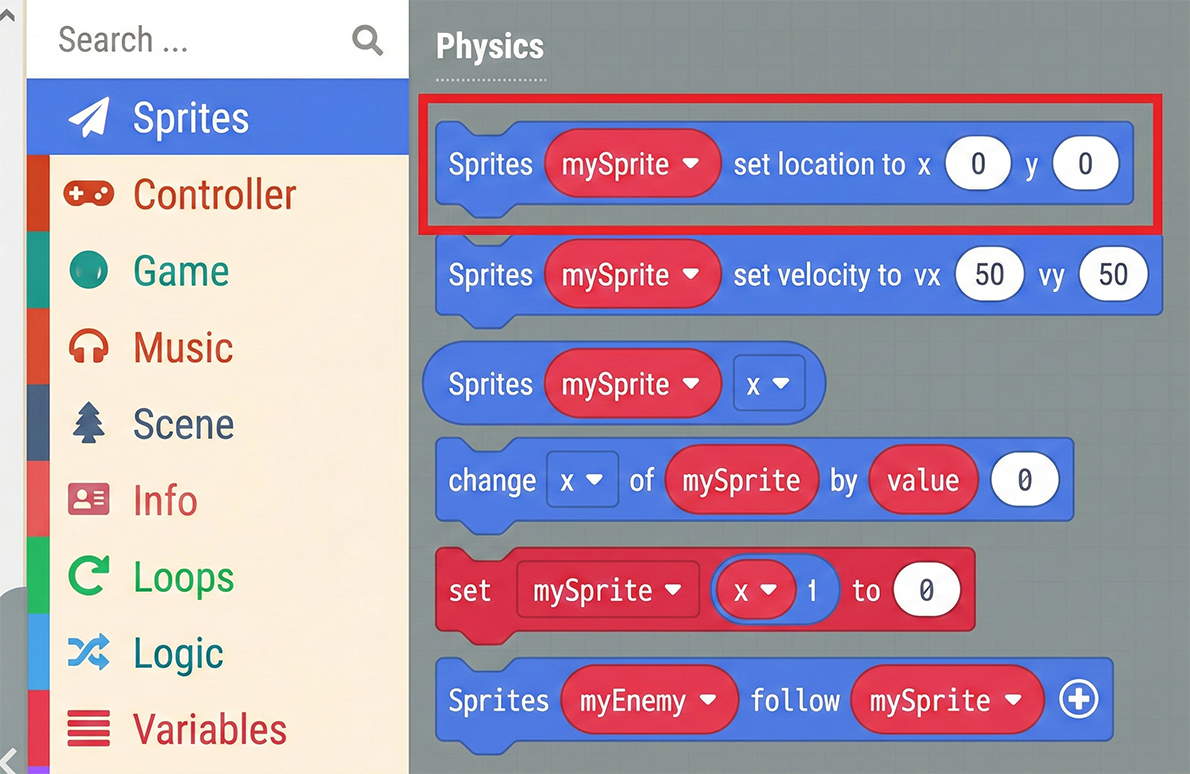
Using this block helps us adjust the Sprite’s position. We can enter numbers in the x and y coordinate fields, or use the pop-up slider to adjust the position. The pop-up window is very user-friendly, providing a visual representation of the coordinates for reference.
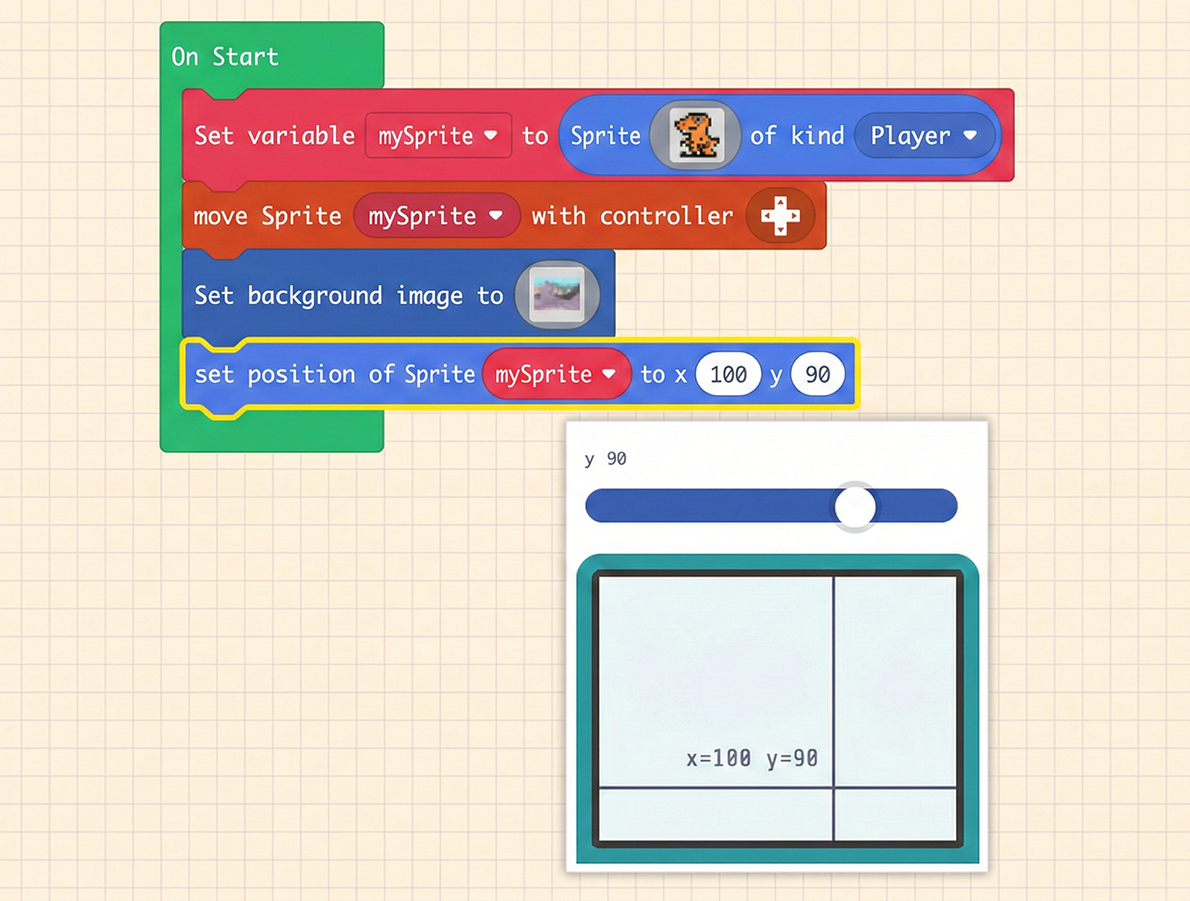
After adjustment, the scene looks much more reasonable. The orange dinosaur is now standing on the ground instead of floating in the air, as shown below.